
How to Install and Setup Joomla on Fedora 34

 7m
7m
 0 comments
 Print
Print
Joomla is a powerful and flexible content management system used to build corporate, news, and even e-commerce websites. If you are using Fedora and want to set up Joomla on a clean and stable server, Fedora 34 with Apache and MariaDB can be a good choice. In this tutorial, we will walk you through the step-by-step installation and setup of Joomla, based on practical experience, so that you have a ready-to-use site at the end.
Prerequisites
Before you start, make sure you have the following:
- A Fedora 34 server with a static IP
- SSH or Console access to the server
- A LAMP Stack installed
If you don’t have LAMP installed on your desktop, prepare it first, because Joomla will not run without it.
Steps to Install and Use Joomla on Fedora 34
Step 1: Prepare the Fedora Server
First, log in to the server:
ssh root@your_server_ip
Since Fedora installations are usually minimal, some basic tools may not be installed, to continue, we will install tar and wget:
dnf install tar wget -y
Then we will update the system to make sure the packages are up to date:
dnf update -y
Step 2: Create a database and user for Joomla
Joomla needs a database to store information. In this tutorial, we will use MariaDB.
First, log in to the MariaDB environment:
mysql -u root -p
Create a database
Replace yourdbname with a name of your choice:
CREATE DATABASE yourdbname CHARACTER SET utf8mb4 COLLATE utf8mb4_general_ci;
Create a user and grant access
Replace the username and password with your own:
GRANT ALL ON yourdbname.* TO 'yourjoomlauser'@'localhost' IDENTIFIED BY 'yourjoomlapassword';
Apply changes and exit
FLUSH PRIVILEGES;
EXIT;
Step 3: Install the PHP dependencies required by Joomla
For Joomla to run without errors, we need to install the necessary PHP modules:
dnf install php-mysqli php-curl php-json php-cgi php-mcrypt php-xmlrpc php-gd php-common php-soap php-xml php-intl php-cli php-ldap php-zip php-readline php-imap php-tidy -y
Step 4: Download and install Joomla
Go to the web server directory:
cd /var/www/html/
Download the stable version of Joomla (in this example, version 3.9.18):
wget https://downloads.joomla.org/cms/joomla3/3-9-18/Joomla_3-9-18-Stable-Full_Package.zip
Extract the file:
unzip Joomla_3-9-18-Stable-Full_Package.zip -d /var/www/html/joomla
Set permissions
To avoid security issues and execution errors:
chown -R apache:apache /var/www/html/joomla
chmod -R 755 /var/www/html/joomla
Step 5: Restart Apache
To apply the changes:
systemctl restart httpd.service
Step 6: Configure Joomla via the browser (Web Installer)
Open the browser and enter one of the following addresses:
http://server_domain_or_IP/joomla
or
http://your.server.IP.address/joomla
Graphical installation steps:
- Enter the site name, administrator email, and login information
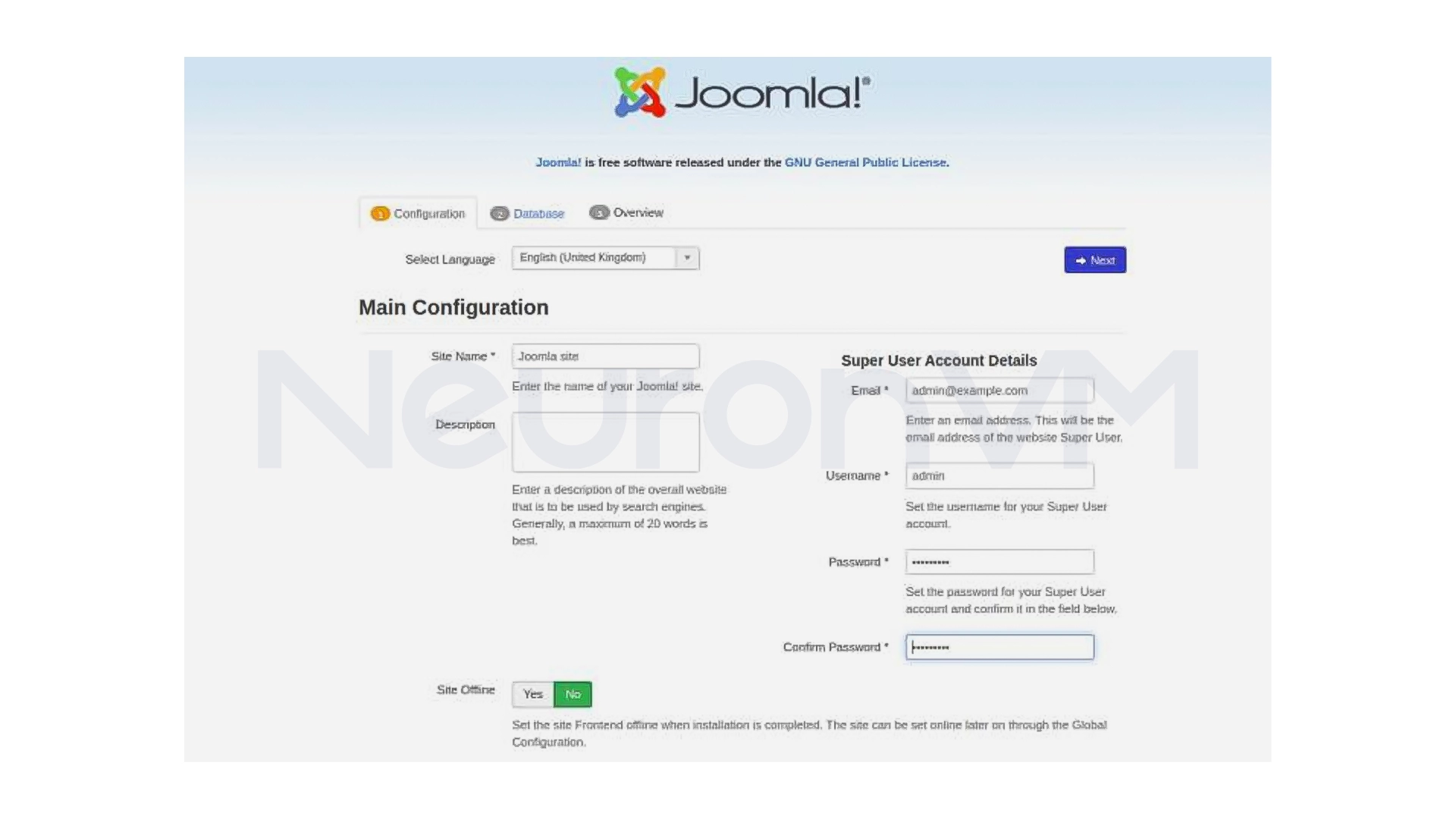
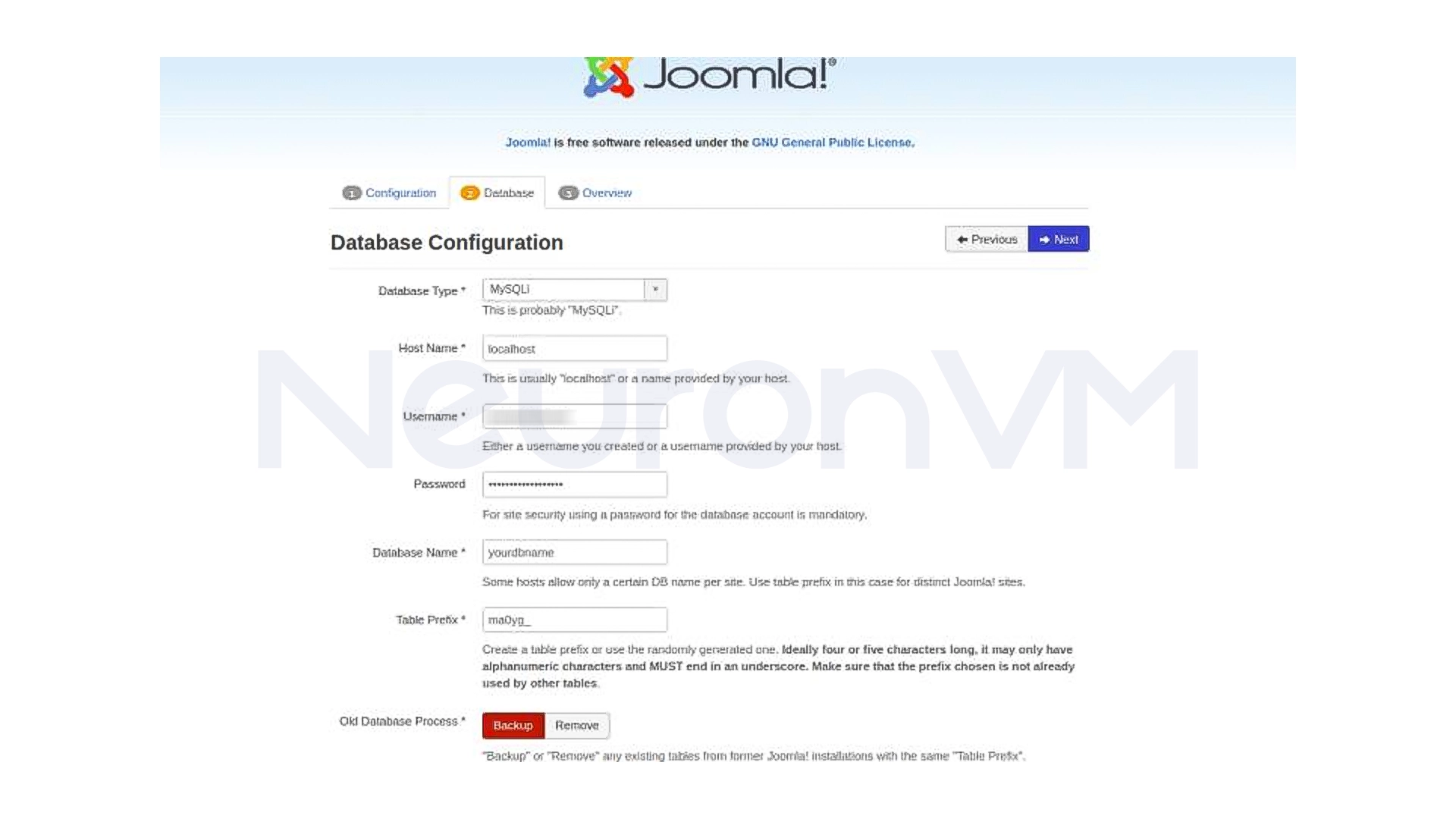
- Enter database information (database name, user, password)
- Final configuration check
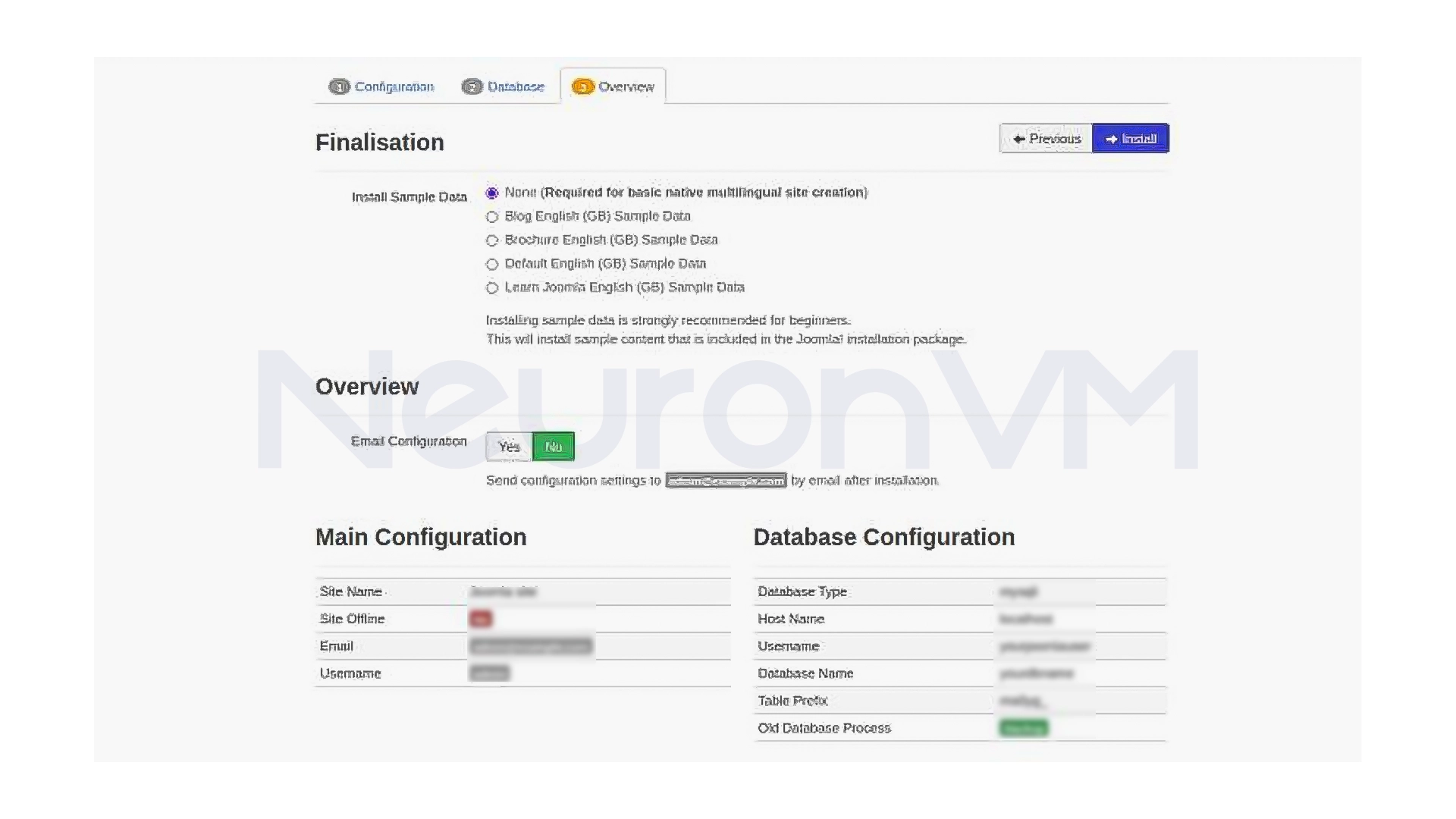
- Click Install
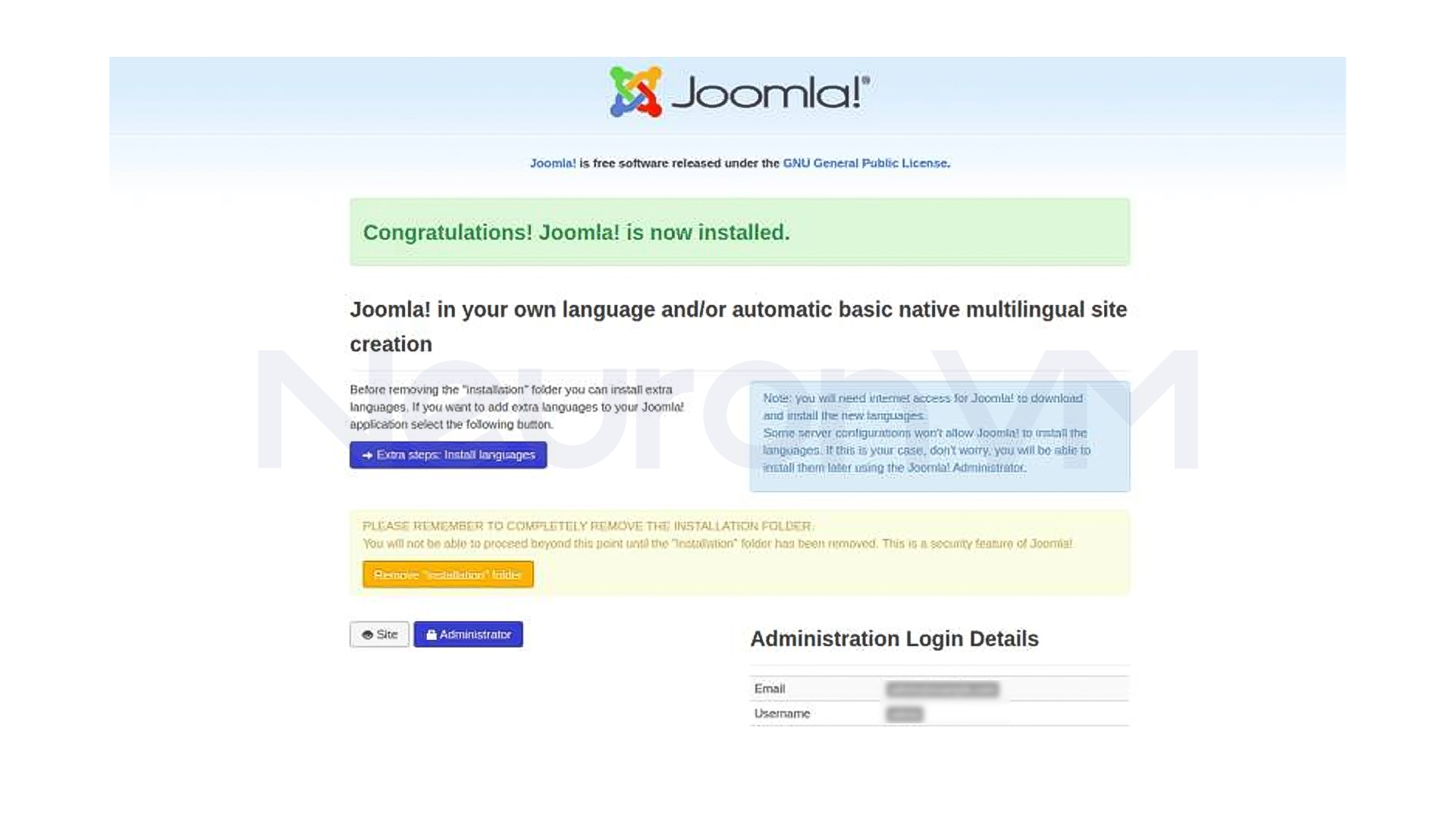
After a few moments, Joomla will be installed, and the site will be ready to use.
My personal experience
In my experience installing Joomla on Fedora, the most important thing was to ensure file permissions and complete installation of PHP modules. If even one of the PHP extensions is not installed, Joomla may give an error during the web installation phase. Fedora has very good stability and after installation, Joomla runs without lag or slowness, for more personal experiences, check out our website.
Important points after installation
- Be sure to delete the installation folder
- Set a strong password from the Joomla administration panel
- Disable unnecessary plugins
- Check for Joomla updates regularly
Conclusion
Installing and setting up Joomla on Fedora 34 may seem a bit technical at first glance, but if you follow the steps carefully and step by step, the result will be completely reliable, the combination of Fedora with Apache and MariaDB provides a stable and secure platform for running Joomla, which is a good option for both personal projects and professional websites.
The important thing here is that after the initial installation, it is the details that make the biggest difference, from setting up file permissions correctly to choosing plugins, if you take a little time and implement the site structure correctly from the beginning, Joomla can become a powerful and flexible tool for managing your content, if you are looking for a reliable CMS that runs on a stable operating system and has complete control over your server, Joomla on Fedora is a logical and professional choice that will not disappoint you in the long run.
 Tags
Tags

 Frequently Asked Questions
Yes, Joomla will automatically ask you to delete this folder after installation to maintain site security.
es, Joomla can handle high-traffic sites well if the server is properly optimized, caching is enabled, and the right plugins are used.