
How to Install WooCommerce on Ubuntu 20.04

 7m
7m
 0 comments
 Print
Print
If you want to set up a stable and professional online store, the combination of Ubuntu 20.04 + WordPress + WooCommerce is one of the best choices, WooCommerce, as the most popular WordPress store plugin, provides you with complete features for managing products, orders, and payments. In this tutorial, we will teach you the process of installing and setting up WooCommerce on Ubuntu 20.04 in a step-by-step and experience-oriented way, so that even if you are going this route for the first time, you can proceed without confusion.
Prerequisites
Before you begin installing WooCommerce, make sure you have the following:
- Server with Ubuntu 20.04
- Install WordPress
- SSH access to the server
- Log in as root
The WordPress application runs on the LEMP Stack by default, which is highly optimized for performance for WordPress sites.
Logging into the Server and Checking Nginx Settings
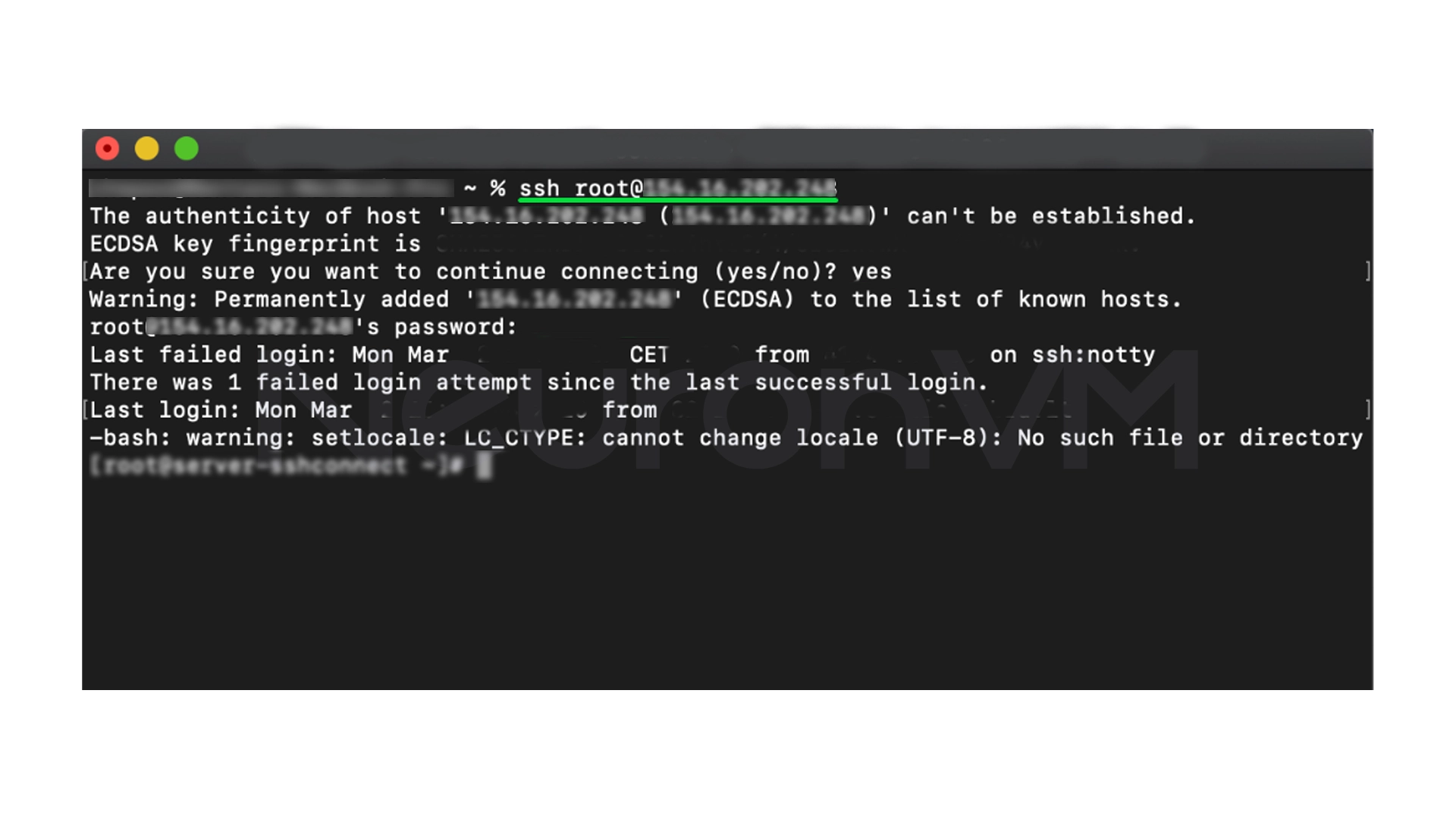
First, connect to the server via SSH:
ssh root@your-server-ip
The default Nginx configuration is based on server resources, but it is actually worth doing a quick check, for viewing the main Nginx configuration file, enter the command below:
cat /etc/nginx/nginx.conf
Look for these values:
user nginx;

worker_processes auto;

worker_connections 1024;
If the “worker_processes” value is set to auto and the “worker_connections” value is set to match the server resources, then your web server is fully optimized for WordPress and also WooCommerce, so you just don’t even need to make any additional changes.
Step 1: Install WooCommerce
In this step, we will download and install WooCommerce manually so that we have full control over the files and permissions.
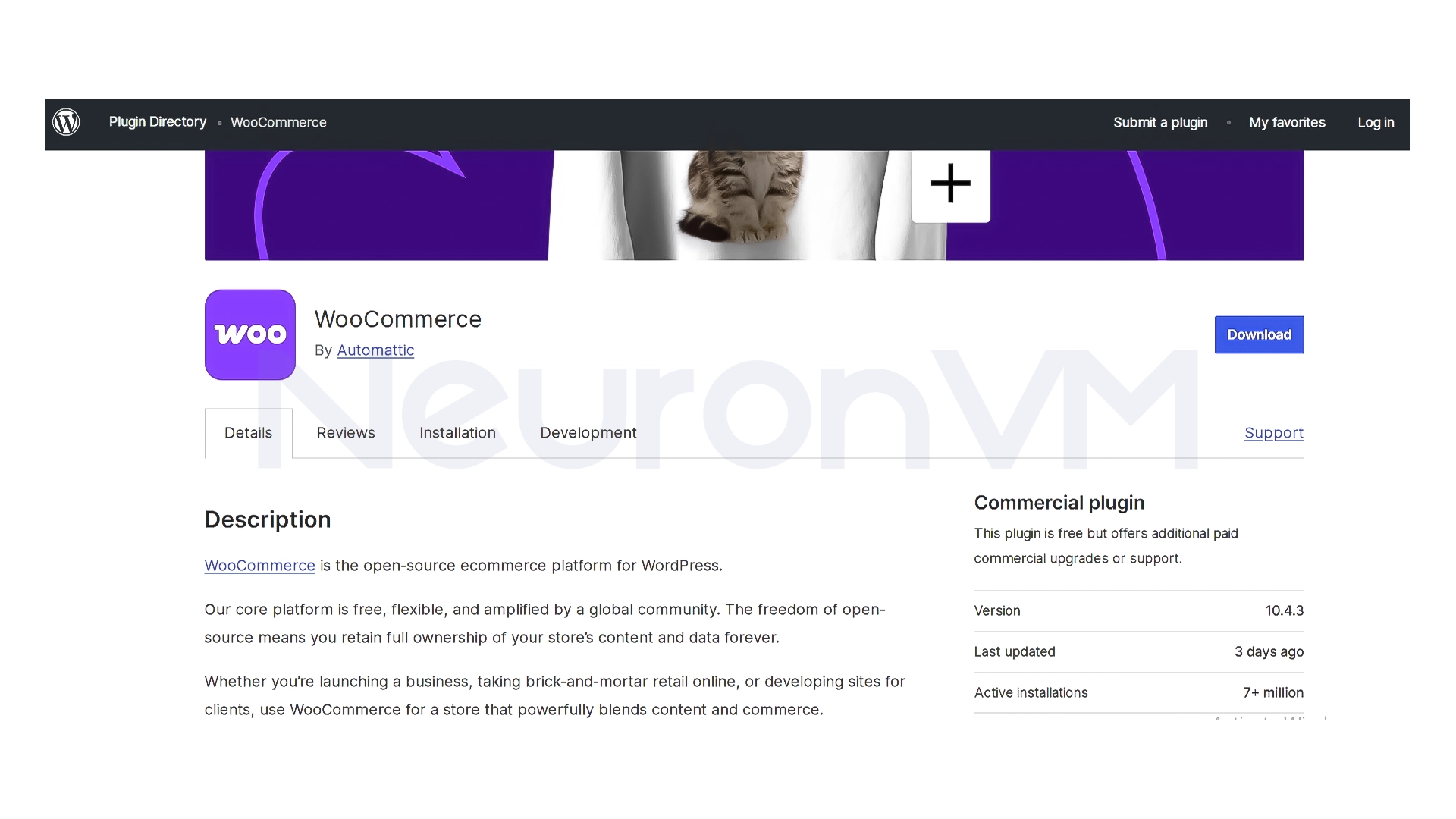
Download the latest version of WooCommerce
First, go to the desired path (e.g. home) and download the plugin file. This tutorial uses version 5.8 (replace with a newer version if needed):
wget https://downloads.wordpress.org/plugin/woocommerce.5.8.0.zip
Extract the files
unzip woocommerce.5.8.0.zip
Move the files to the WordPress plugins directory
mv woocommerce /var/www/html/wordpress/wp-content/plugins
Set permissions
To avoid common WordPress errors, correct the ownership of the files:
chown -R www-data:www-data /var/www/html/wordpress/wp-content/plugins/woocommerce
This step is very important, and if you skip it, you may encounter an error when activating the plugin.
Step 2: Set up WooCommerce
Now that the files are in the right place, it’s time to activate and configure WooCommerce.
Open a browser and log in to your WordPress dashboard:
http://your-server-ip/wp-admin
Go to the Plugins section
Find the WooCommerce plugin and click Activate
Once activated, the WooCommerce setup wizard will run automatically.
Initial Store Configuration
In this section, you’ll be asked for basic store information:
- Business address and base country
- Store activity type and category
- Product type (physical or digital)
- Estimated sales volume
- Choose a store template
WooCommerce suggests connecting your WordPress account to Jetpack; this step is not optional, but it’s recommended to enable some features like reporting and security, once you’re done, you’ll be returned to your WordPress dashboard, and your store is ready to go.
My personal experience
In my experience installing WooCommerce on Ubuntu 20.04, the most important thing that stood out was the importance of file permissions, because on the first install, WooCommerce wouldn’t launch properly because the ownership of the plugins folder wasn’t set, after correcting chown and checking the Nginx settings, the store ran without any issues, and in my opinion, using WordPress really cuts down on setup time and is a great option for quick projects or MVPs.
Important things to remember after installing WooCommerce
After a successful setup, be sure to pay attention to the following:
- Enable SSL for secure payments
- Set up payment methods
- Check the system status via WooCommerce -> Status
- Install a cache plugin to improve speed
- Make regular backups of your database and files
These things have a direct impact on performance and user trust, for more tips, check out our website.
Conclusion
In this article, we have provided a practical, step-by-step guide to installing and configuring WooCommerce on Ubuntu 20.04 using WordPress, If the server infrastructure is set up properly, WooCommerce can be a powerful and scalable solution for setting up an online store. With a little care in the installation and also by carefully following the steps, you can easily have a stable professional store without any hassle.
 Tags
Tags

 Frequently Asked Questions
Yes, WooCommerce is a WordPress plugin and cannot be used without WordPress installed.
If WordPress is ready, the entire WooCommerce installation and activation process usually takes less than 30 minutes.