
How to Install Ubuntu on Windows 10 (Step-by-Step with WSL)

 8m
8m
 0 comments
 Print
Print
If this is your first time installing Ubuntu on Windows 10, you’re probably feeling excitement and stress at the same time on the one hand, you want to experience the world of Linux, and on the other, you’re worried that all your data will be erased or your system will crash, That’s exactly how I felt when I first tried to install Ubuntu on Windows 10, I thought it would be a complicated and risky process, but the reality was much simpler and even more enjoyable. In this guide, you’re not just going to read the dry and formal steps, because you’re going to see real-world experiences, practical tips, and tricks that will help you install Ubuntu alongside Windows 10 without any hassle and enter the world of Linux with confidence.
How to Install Ubuntu on Windows 10
Step 1: Check your Windows 10 version
First, you need to make sure that your version of Windows supports WSL, to do this:
1- Click Start and go to Settings.
2- Open the System section.
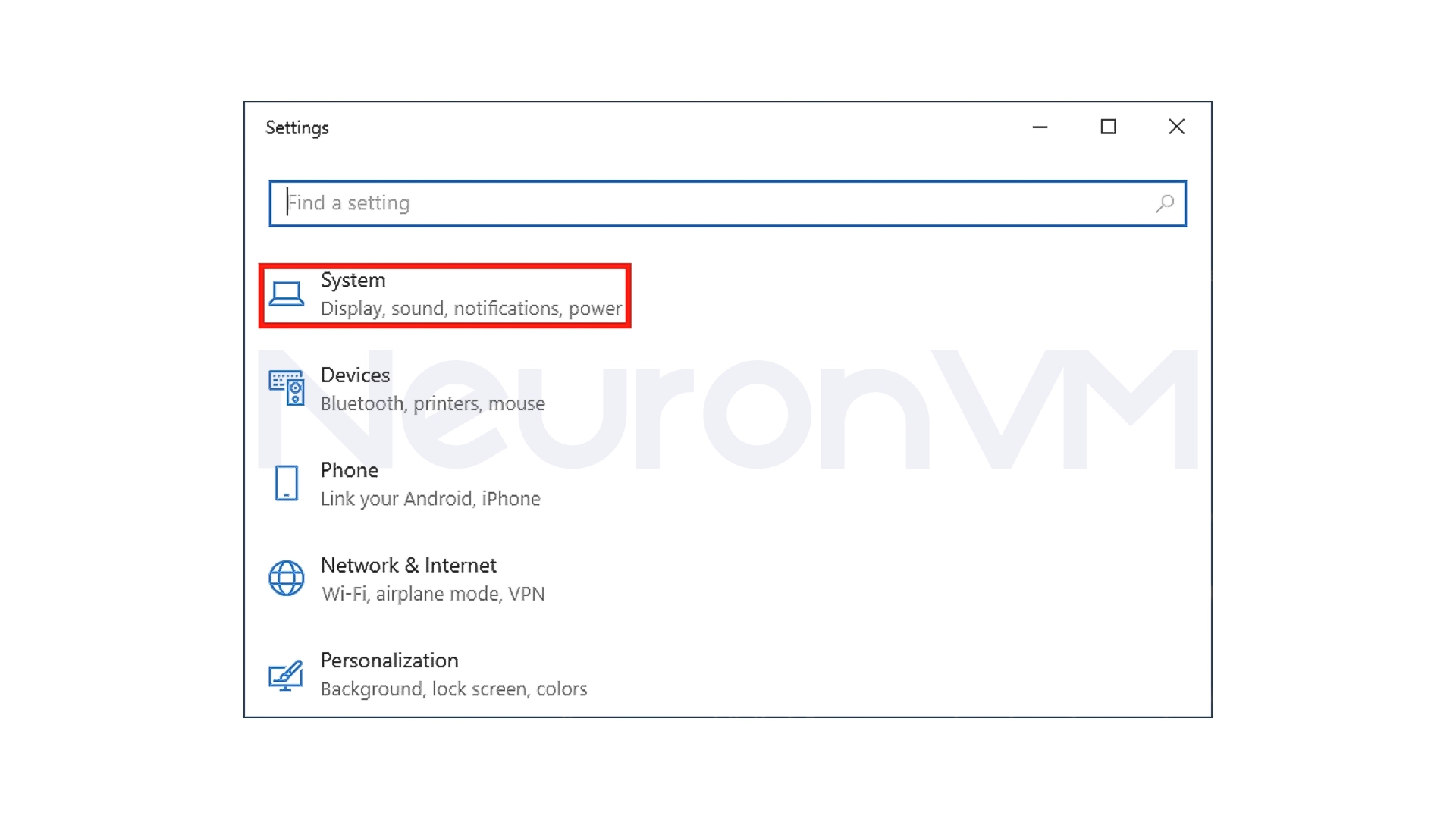
3- Go to About.
Check the Windows version in the Windows specifications section, If your version is 1709 or higher, your system is ready to install Ubuntu.
Step 2: Enable Windows Subsystem for Linux
Now you need to enable Windows Subsystem for Linux:
1- Search the Start menu for Turn Windows features on or off.
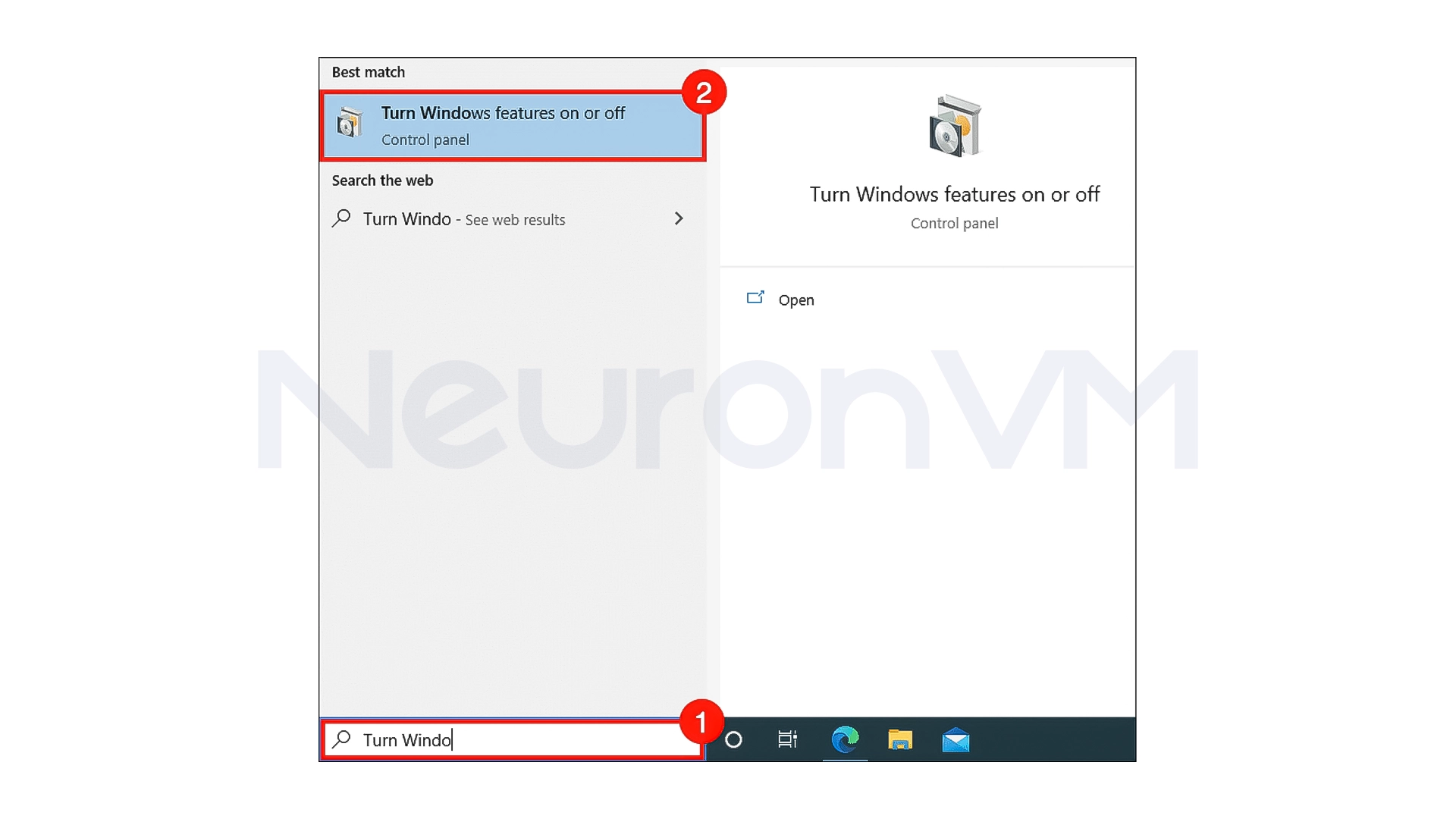
2- Click the result to open the Settings window.
3- In the list, find the Windows Subsystem for Linux option and check it.

4- Click OK.
Step 3: Install Ubuntu from the Microsoft Store
Install Ubuntu itself:
1- Go to the Microsoft Store and in the search field, type Linux.
2- Click on the Run Linux on Windows option, then from the list of distributions, select Ubuntu.
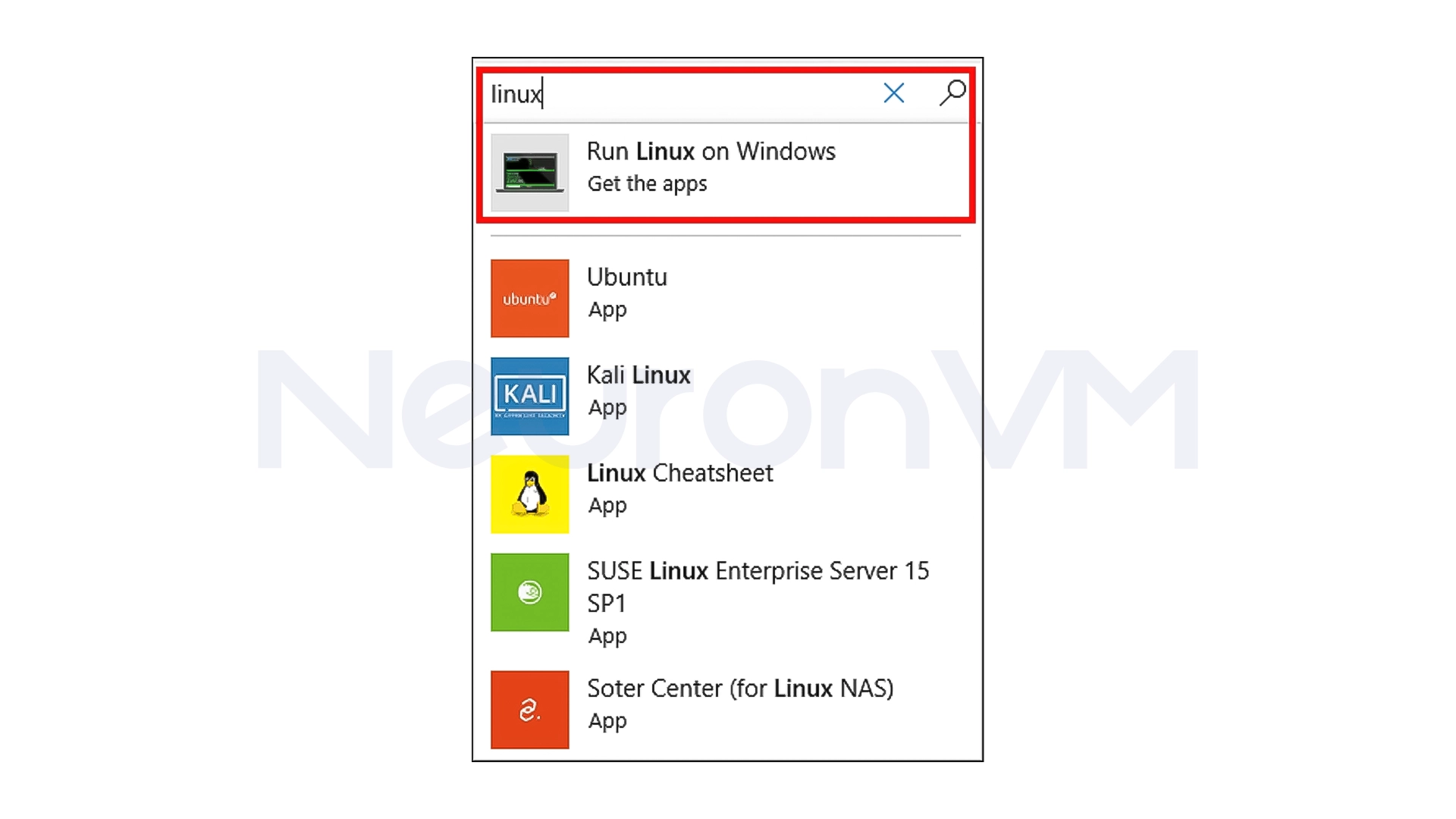
3- Click on the Get button to start the download, and click on the Launch button.
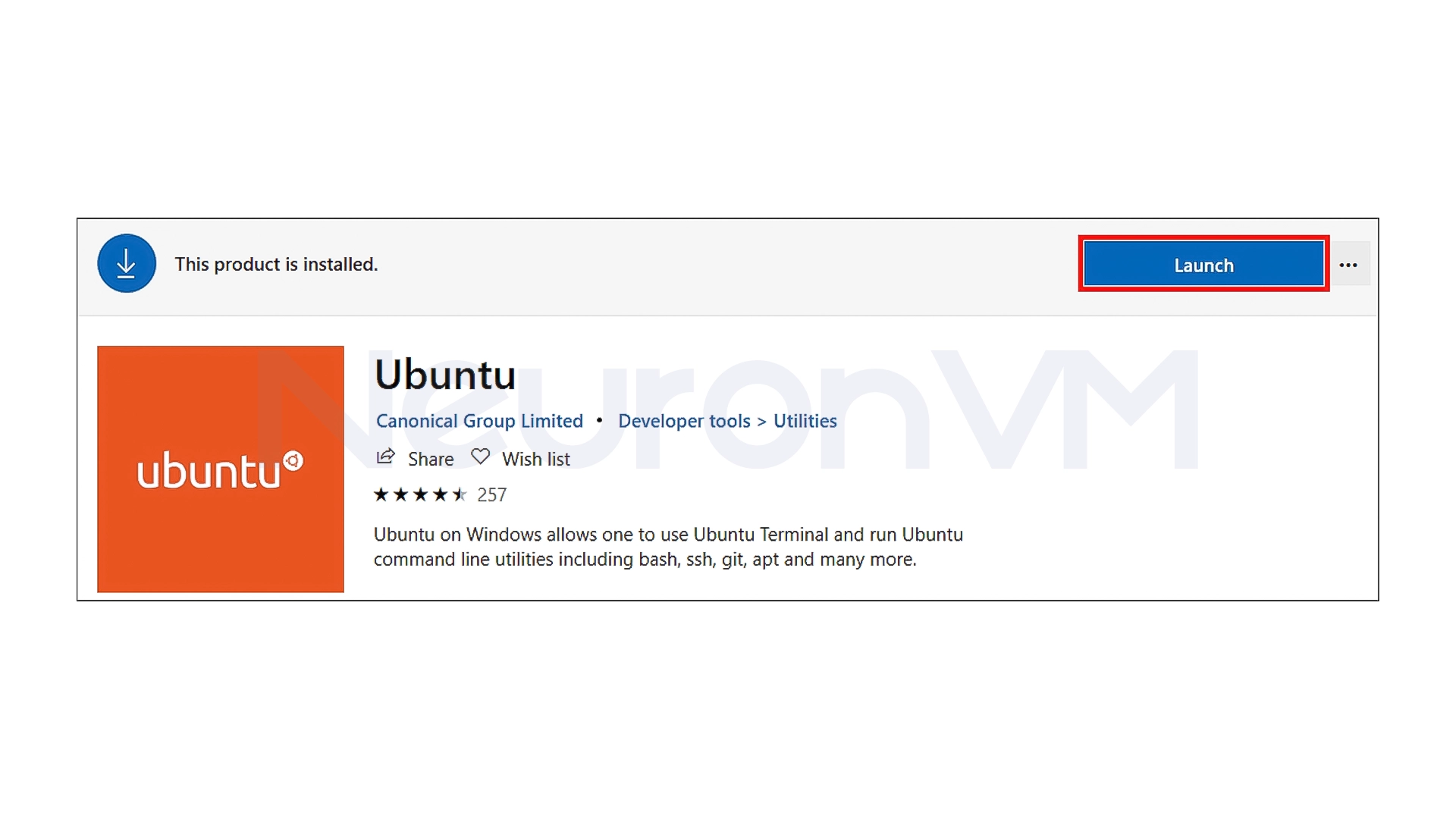
4- A terminal window will open, and Ubuntu will begin the installation, you need to choose a Linux username and password, and your Linux environment is now ready.
Step 4: Update Ubuntu after installation
It is better to keep your Linux system updated for security, In the Ubuntu terminal, type this command:
sudo apt-get update
Then upgrade all packages to the latest version with the following command:
sudo apt-get upgrade
When prompted, type Y and press Enter.
After that, run the following command to clean up extra dependencies:
sudo apt-get dist-upgrade
Again, type Y when prompted.
Step 5: Run Ubuntu on Windows
From now on, whenever you want to use Ubuntu:
- Go to Start Menu
- Search for Ubuntu
- Click on it to launch the Linux terminal
From here, you can use Linux tools like OpenSSL, Git, Python, etc.
My Experience Installing Ubuntu on Windows 10
The first time i tried to install Ubuntu on Windows 10, I was thinking that it would be really complicated to me because I always thought that Linux was all about a bunch of weird settings that you have to deal with, but when I used WSL, I found that my experience was completely different, and I could easily have access to Linux environment without even having to uninstall Windows. What impressed me the most in that time was the speed of setup and the installation only took a few clicks, From that moment on, doing things like working with Git, or testing Linux scripts became much more faster, and for me, Ubuntu on Windows became one of the most useful everyday tools, especially when I didn’t want to run a virtual machine for every little task.
Conclusion
Installing Ubuntu on Windows 10 is one of the smartest ways to experience Linux without the hassle of a traditional installation because Instead of having to deal with partitioning and installing two operating systems, you can simply have a full Linux environment alongside Windows and get the best of both worlds, This method is a safe and quick way for programmers, server administrators and even curious users to enter the world of Linux. If you follow the steps in order, you will have a ready-made system in no time that can help you learn and work professionally for years, Ubuntu on Windows is not just a tool, but a convenient and inexpensive bridge to enter the more professional world of computing, if you are interested, check out our website.


 Frequently Asked Questions
No, this method is done without touching personal files and your Windows will remain completely intact.
No, even new users can easily use it.
Yes, both environments can be used side by side and you can switch between them whenever you want.
You might like it