




How to Install Opera Browser on Ubuntu 21.04 (Step-by-Step)

 5m
5m
 0 comments
 Print
Print
If you’ve been using Ubuntu for a while and you’d like a faster and more unique browser than the default one, Opera could be a great choice for you. When I first installed Opera on Ubuntu 21.04, I realized how much easier it was to have a built-in VPN and ad blocker, without having to install a bunch of separate add-ons, In this tutorial, you’re going to learn how to install Opera on Ubuntu 21.04 in a very simple and step-by-step manner, without any complications or hassles.
Why is Opera a good choice for Ubuntu?
Before you start installing, it’s worth knowing why so many Linux users are drawn to Opera, it has an ad blocker by default, a built-in VPN, optimizes battery life, and offers a handy sidebar for messengers like WhatsApp and Telegram, personally, I can really feel the difference in Opera’s battery life compared to some other browsers when I’m working on my laptop.
Why aren’t Opera’s features just ads?
Many users think that an ad blocker or VPN is just a luxury feature, but in practice, these tools directly affect the speed of page loading and information security, when heavy ads are removed, RAM consumption decreases, and the laptop heats up more slowly. Opera’s built-in VPN also encrypts your data on public networks, something that in regular browsers is only possible by installing third-party extensions, and these differences are quite noticeable in everyday use, especially for users who spend a lot of time on the web.
The real difference between Opera, Chrome, and Firefox on Linux
Compared to browsers like Chrome or Firefox on Linux, Opera takes a different approach, because many of the features that Chrome requires are plug-in-enabled by default in Opera, but on the other hand, laptop battery life is generally lower when using Opera, as the browser’s built-in mechanisms prevent inactive tabs from consuming system resources, this makes Opera a more logical choice for laptop users and mid-range systems.
Installing Opera Browser on Ubuntu 21.04 using the official repository
The best and most reliable way to install Opera is to use the official repository itself. This method will automatically update the browser every time you update your system.
First, update your system:
sudo apt update
sudo apt upgrade
Then install the necessary tools:
sudo apt install dirmngr ca-certificates software-properties-common apt-transport-https curl -y
Now add the Opera repository security key:
wget -qO- https://deb.opera.com/archive.key | gpg --dearmor | sudo dd of=/usr/share/keyrings/opera-browser.gpg
Next, add the Opera repository to the system:
cat <<EOF | sudo tee /etc/apt/sources.list.d/opera.sources
Types: deb
URIs: https://deb.opera.com/opera-stable/
Suites: stable
Components: non-free
Signed-By: /usr/share/keyrings/opera-browser.gpg
EOF
Update the repository list again:
sudo apt update
And finally install Opera:
sudo apt install opera-stable
Running Opera After Installation
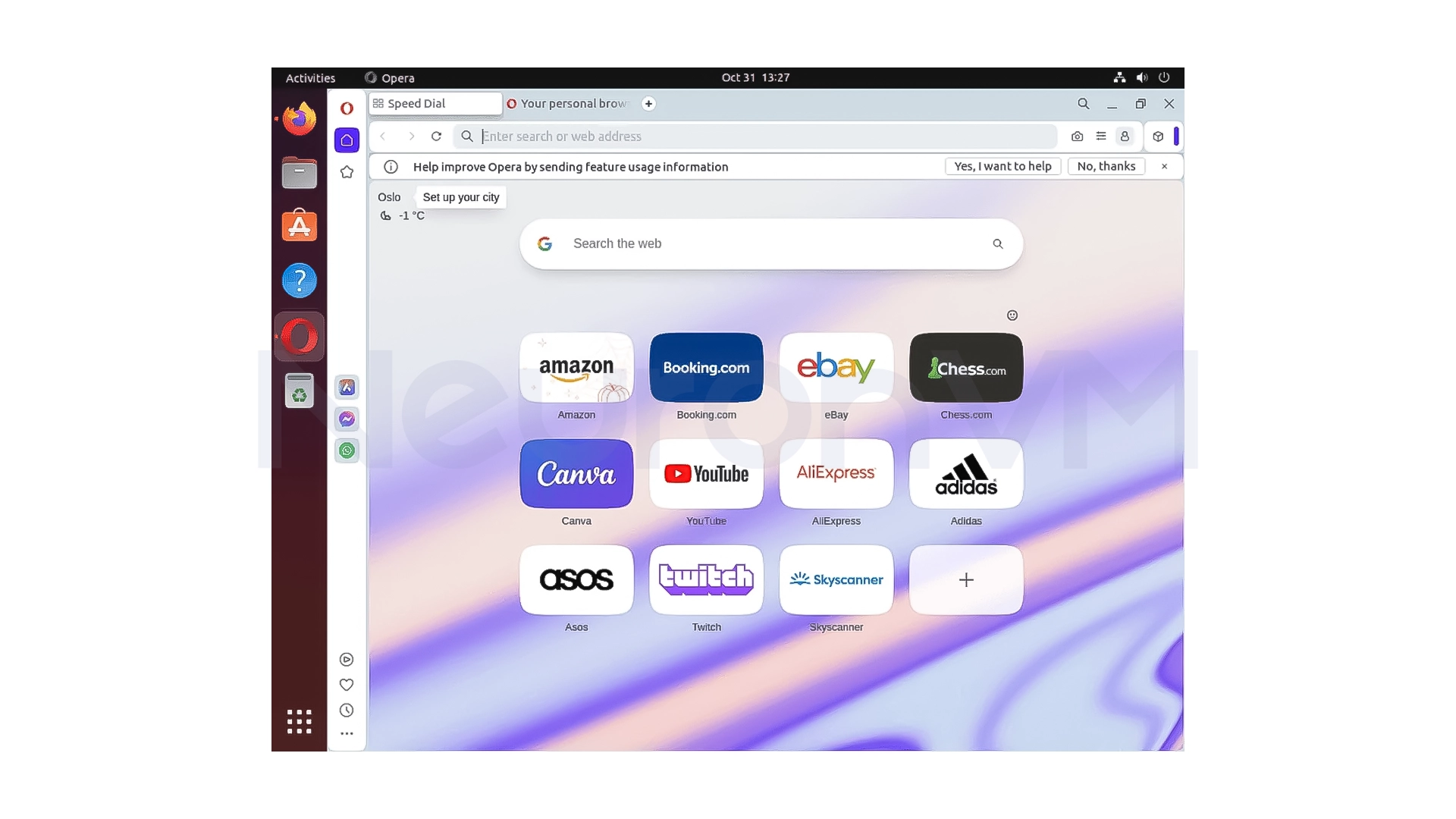
After installation, you can easily find the Opera browser from the applications menu, if you prefer to run it from the terminal, just type:
opera
On first launch, Opera will ask you if you want to make it the default browser. This choice is entirely optional and can be changed at any time, you can also access Opera from your desktop if you want.
My Experience with Opera on Ubuntu
The first thing that caught my attention was the speed of the browser’s startup, Opera is very fast and doesn’t put too much strain on the system, even when you have multiple tabs open. The built-in VPN was very useful for me when I was connected to public Wi-Fi and wanted a little extra security, Opera’s sidebar also made it easier for me to manage my messages without opening a new tab and even if you don’t have a very powerful system, Opera on Ubuntu 21.04 runs very smoothly, i’ve shared many of my other experiences on our website, read more if intrested.
Opera privacy tips that are rarely mentioned
What many tutorials don’t mention is that Opera on Linux is built on Chromium, but it has a different privacy policy and unlike many Chromium-based browsers, Opera has less reliance on Google services, which is a big advantage for users who don’t want their data tied to the Google ecosystem. This has made Opera a popular choice among power users of Linux.
Why Opera could be the main browser for Linux users?
For many new Linux users, choosing the right browser is one of the first important decisions and Opera in the Ubuntu environment is not just a web browser, but a complete workspace for managing messages, searching, downloading, and maintaining privacy for this reason, Opera is used as a secondary or primary browser in many small software development teams and even some educational environments.
Conclusion
If you’re looking for a fast and lightweight browser for Ubuntu 21.04, Opera is one of the best options, it’s also very easy to install, and you can get it up and running with a few short commands, the combination of built-in features like VPN, ad blocker, and messenger management makes for a different experience than regular browsers.
 Tags
Tags

 Frequently Asked Questions
On many systems, Opera is faster and smoother than some browsers due to its optimal resource consumption.
Opera's built-in VPN is good for increasing privacy in everyday web browsing, but it is not a complete replacement for professional VPNs.
Yes, the Stable, Beta, and Developer versions can be installed side by side without interfering with each other.
You might like it

Linux Tutorials
How to Install Genshin Impact on Linux


Windows Tutorials
How to Connect to VPS on Windows 11


Windows Tutorials
How to Install WinPE ISO on Windows 11
