


How to Fix OpenConnect Errors on Windows 10


 8m
8m
 0 comments
 Print
Print
OpenConnect is a secure and practical tool for creating VPN connections on Windows 10. Many users use this software as a reliable alternative to Cisco AnyConnect. However, you may encounter various errors when running OpenConnect on Windows. This guide provides a complete and in-depth version of OpenConnect error troubleshooting and helps you better understand the cause of each problem and fix it in a systematic way.
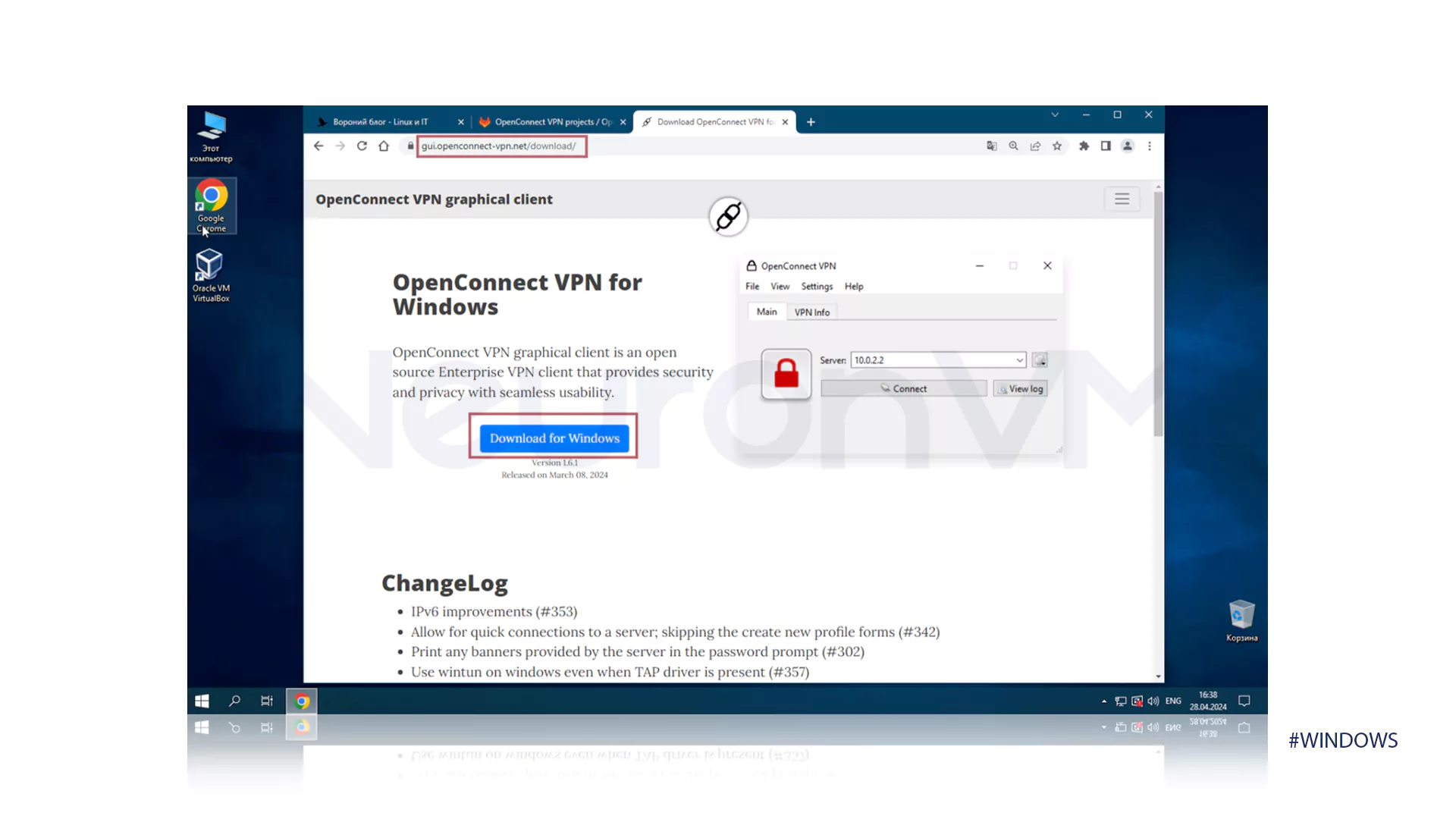
What Is OpenConnect?
OpenConnect is an open source client designed to create SSL VPN connections. The program supports AnyConnect and Ocserv ports and runs on various operating systems. Windows users use it due to its high security, reasonable speed, and lack of dependence on proprietary Cisco equipment. Support for various authentication methods such as SAML TOTP and RSA SecurID has made OpenConnect an important place in enterprise and remote environments.
Common OpenConnect Errors on Windows 10 and How to Fix Them
1. No SSO handler error
This error is seen when you are trying to enable SSO or MFA. The error message usually looks like this.
No SSO handler
Failed to complete authentication.
Why does this error occur?
The SAML mechanism in OpenConnect requires the user’s browser to be opened automatically, but this functionality is not supported on Windows due to the lack of posix_spawn. Because of this, OpenConnect is unable to start the authentication process and the No SSO handler message is displayed.
Solution 1
Run OpenConnect and copy the SAML link that is displayed in the console. Paste the link in the browser and return to the application after completing the authentication. This method bypasses the Windows limitation and completes the process.
Solution 2
The system administrator can create a special Callback for Windows. This Callback receives the authentication link and opens the browser using the CreateProcess method. Then it returns the result to OpenConnect. This method is exactly the same as the External Browser mode but is compatible with the Windows structure.
2. Could not open vpnc log 5 error
This error is very common in the GUI version and is usually seen as follows.
Could not open vpnc log 5.
Main cause of the error
The vpnc script js script is not running. This script is responsible for generating logs and managing connection data. If the js file association is not registered correctly in Windows, the system cannot run this file and an error is displayed.
The first method to fix the error
Open CMD and run the following command.
cscript vpnc script js.
If the script runs without problems, the error is resolved.
The second method to fix the error
Open the Run option and run the regedit command.
Go to the following path.
HKEY_CLASSES_ROOT js.
In this section, set the Default value to JSFile. Doing so will enable the execution of js files and OpenConnect will generate logs correctly.
3. The transmitted packet is too large EMSGSIZE error
This error occurs when a connection is established but no traffic passes through the tunnel.
The main reason for the error
OpenConnect works in DTLS mode. DTLS uses large packets. If the user’s network does not support large packets, Windows displays the EMSGSIZE error. The result of this problem is not receiving a response from the server and the connection is completely disconnected.
Solution
Reduce the MTU value. Add the following command to the settings.
base mtu 1450.
If the error persists, reduce the value in stages, for example, 1400 or 1350 or 1300 until the packets are compatible with the network path.
Expert Tips to Prevent OpenConnect Errors
Running OpenConnect on Windows requires a few technical points. Following these points will reduce the chances of errors.
- Using multiple VPNs at the same time can cause network path interference. Close other clients before running OpenConnect.
- Rebuild Windows network with reset and flushdns commands to eliminate hidden problems .
- Always keep TAP driver up to date as old versions can cause MTU corruption.
- Run OpenConnect GUI with Administrator access to apply VPN paths without restrictions.
Conclusion
OpenConnect is a powerful tool for creating secure VPN connections on Windows / but some common errors can disrupt your connection!!! By understanding the root causes of each error and implementing specialized solutions, you can have a stable and uninterrupted connection. If you encounter any other error, share it with us for complete guidance.
 Tags
Tags

 Frequently Asked Questions
This error usually appears when OpenConnect cannot initiate the SAML external browser flow. Windows does not support posix_spawn, which is required for the --external-browser flag. To fix this OpenConnect error, you can manually copy the SAML link into your browser or use a Windows-compatible callback method such as Win32 CreateProcess.
The "Could not open vpnc.log: 5" message means that the vpnc script did not run and the log file was not generated. To fix this OpenConnect error, re-register the .js file handler in Windows Registry and run the vpnc-script.js using cscript. Resetting the .js default value to JSFile usually resolves the issue.rn
This OpenConnect error occurs due to an MTU mismatch while using DTLS mode. To fix it, reduce the MTU value by adding --base-mtu=1450 to your OpenConnect configuration. If the issue persists, gradually lower the value in steps of 50 until the connection becomes stable.
You might like it