





How to Disable Password Expiration in Windows 11

 9m
9m
 0 comments
 Print
Print
The password change feature in Windows 11 helps with system security, but for many users, it is a difficult and annoying experience due to the constant reminders and frequent password changes, fortunately, you can easily disable this feature for local and Microsoft accounts, and no longer have to change passwords frequently. In this article, we will teach you how to disable Windows 11 password change in a simple and user-friendly way, so that you can consider both security and user convenience.
Steps to Disable Windows Change Password Prompt on Windows 11
1- Disable Password Expiration for Microsoft Account
If you are using a Microsoft account, you will need to reset your current password to disable password expiration. The steps are as follows:
Step 1: Sign in to your Microsoft account
Go to the Microsoft account security page and sign in with your password.
Microsoft Account Security Page
Step 2: Change your password and disable its expiration
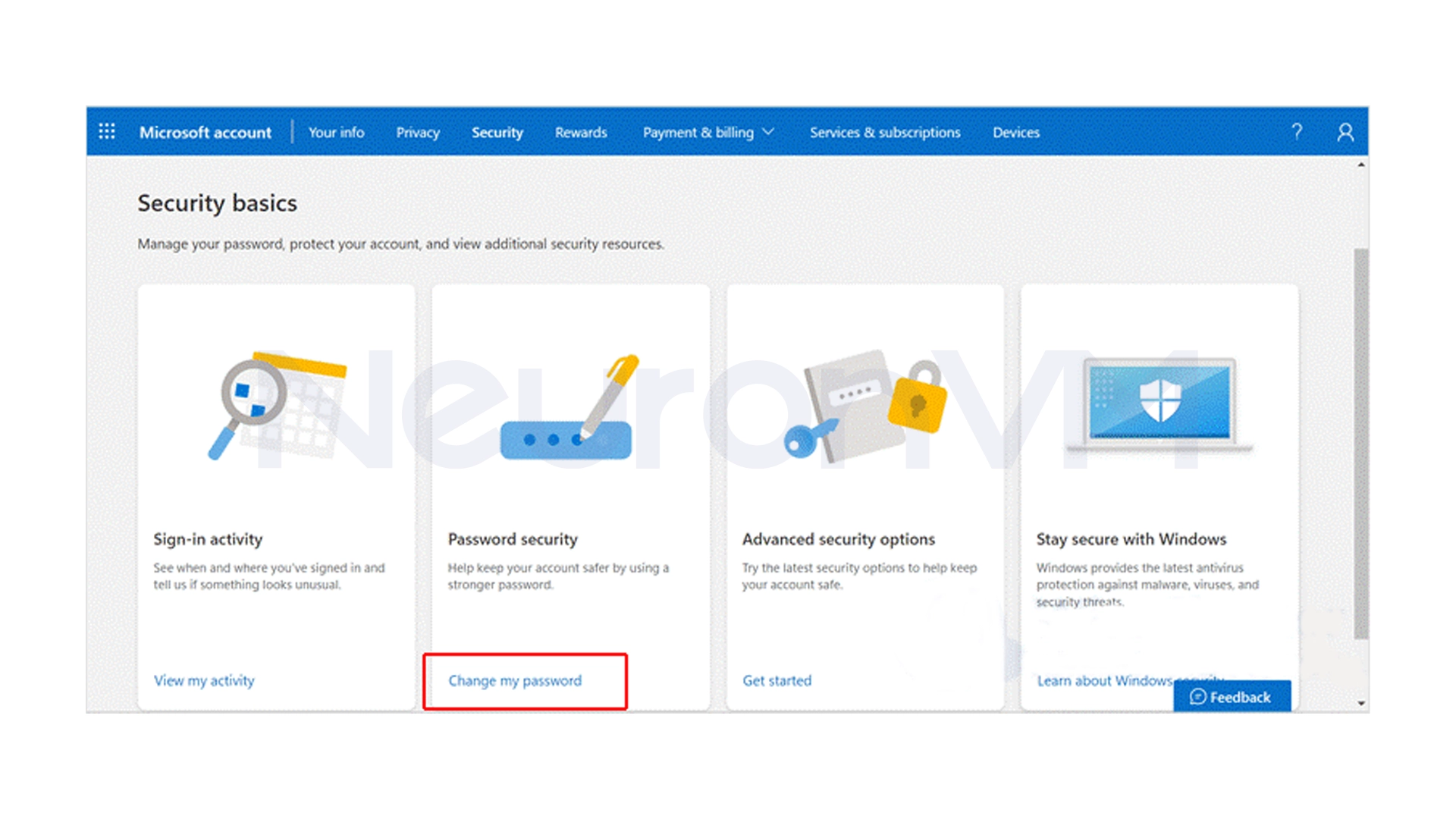
Click on the “Change my password” option.
On the new page, enter the old password and enter the new password in the next two boxes.
Uncheck the “Make me change my password every 72 days” option and click Save.
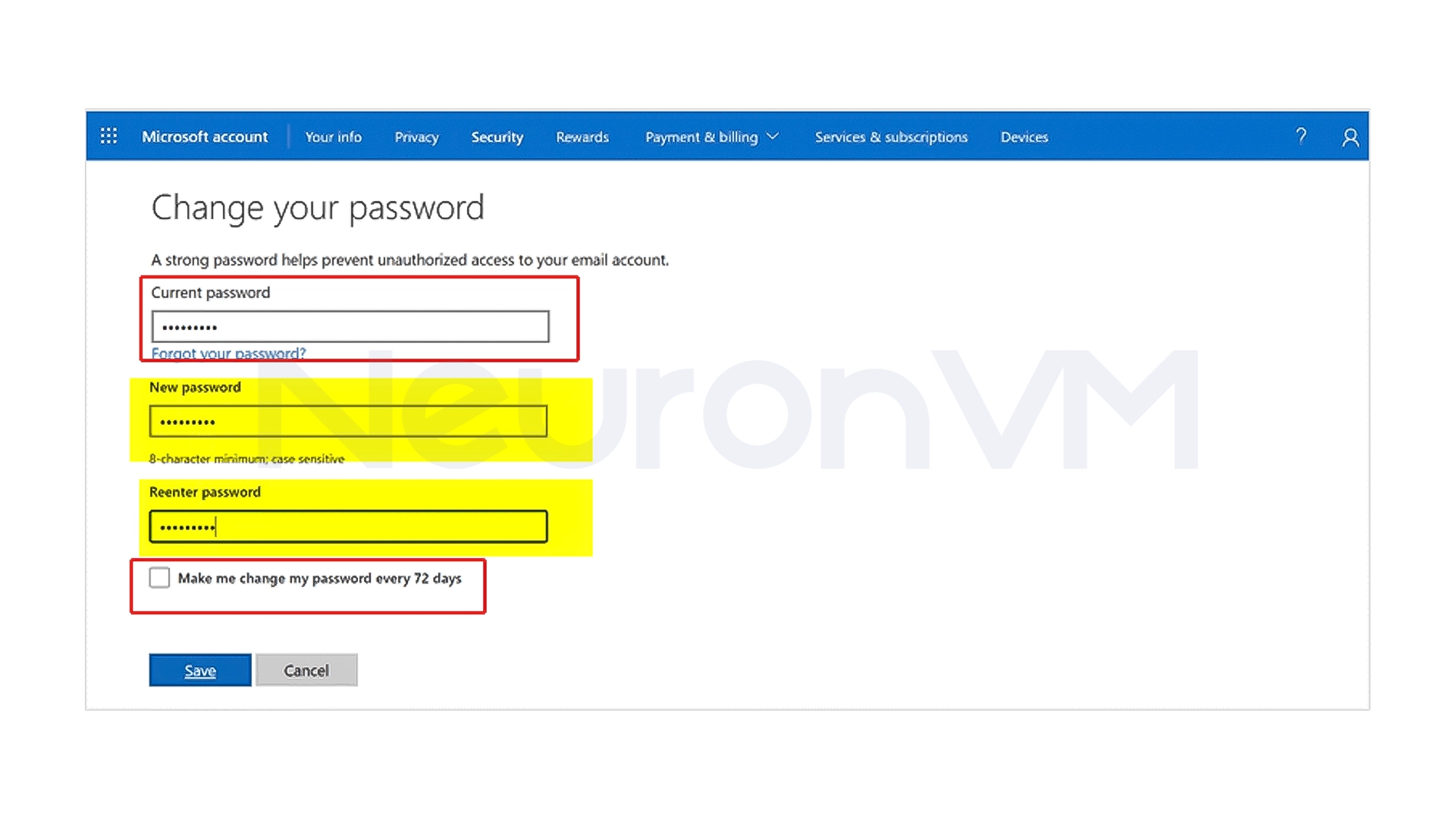
This will disable password expiration for your Microsoft account.
2- ِDisable password expiration for local accounts
For local accounts, you can use the command prompt.
Step 1: Run Command Prompt as Administrator
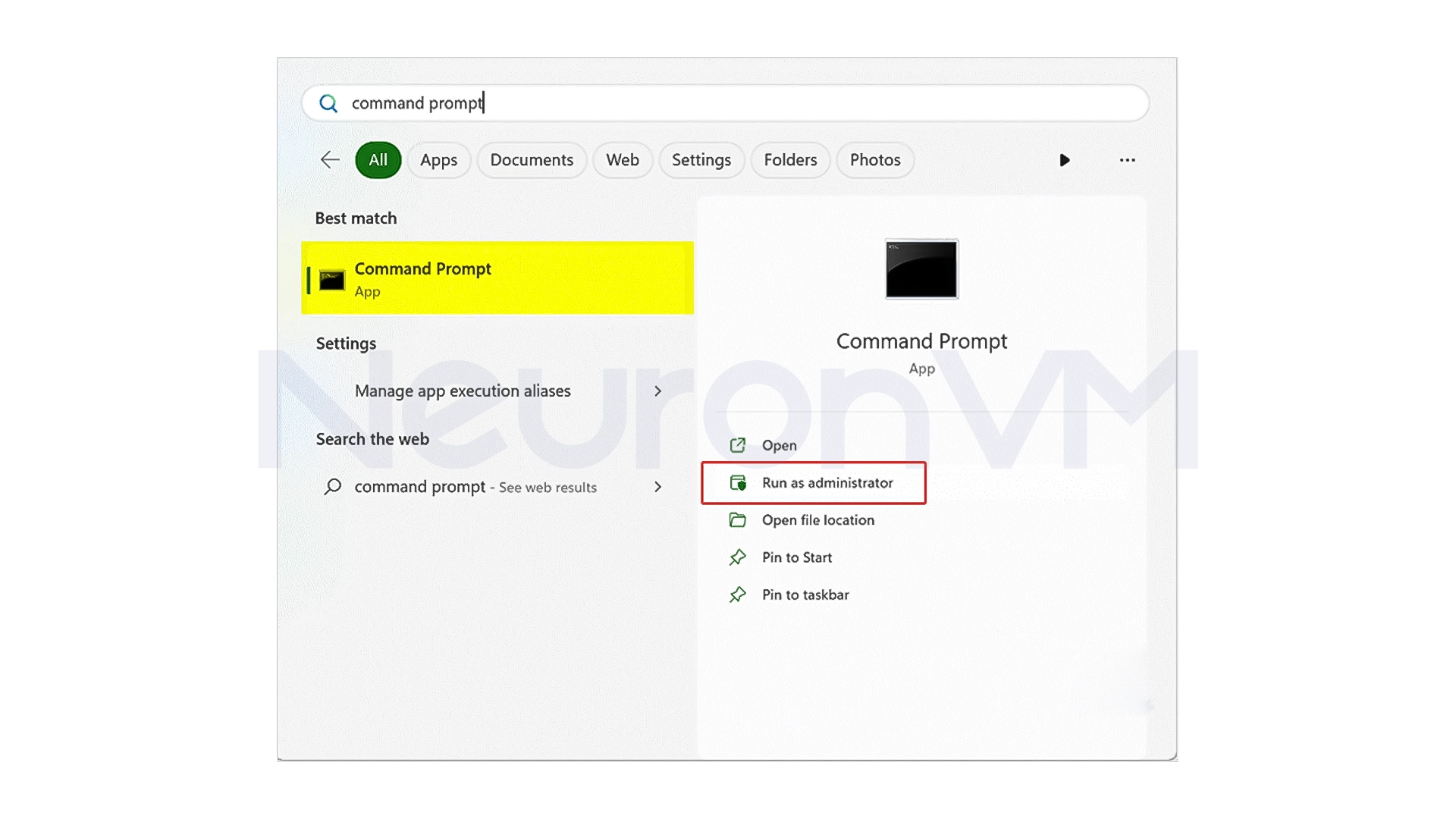
Click on the Start menu and search for Command Prompt.
Right-click on it and select Run as administrator.
Step 2: Enter the command to disable password expiration
For a specific local account:
wmic UserAccount where Name="Username" set PasswordExpires=False
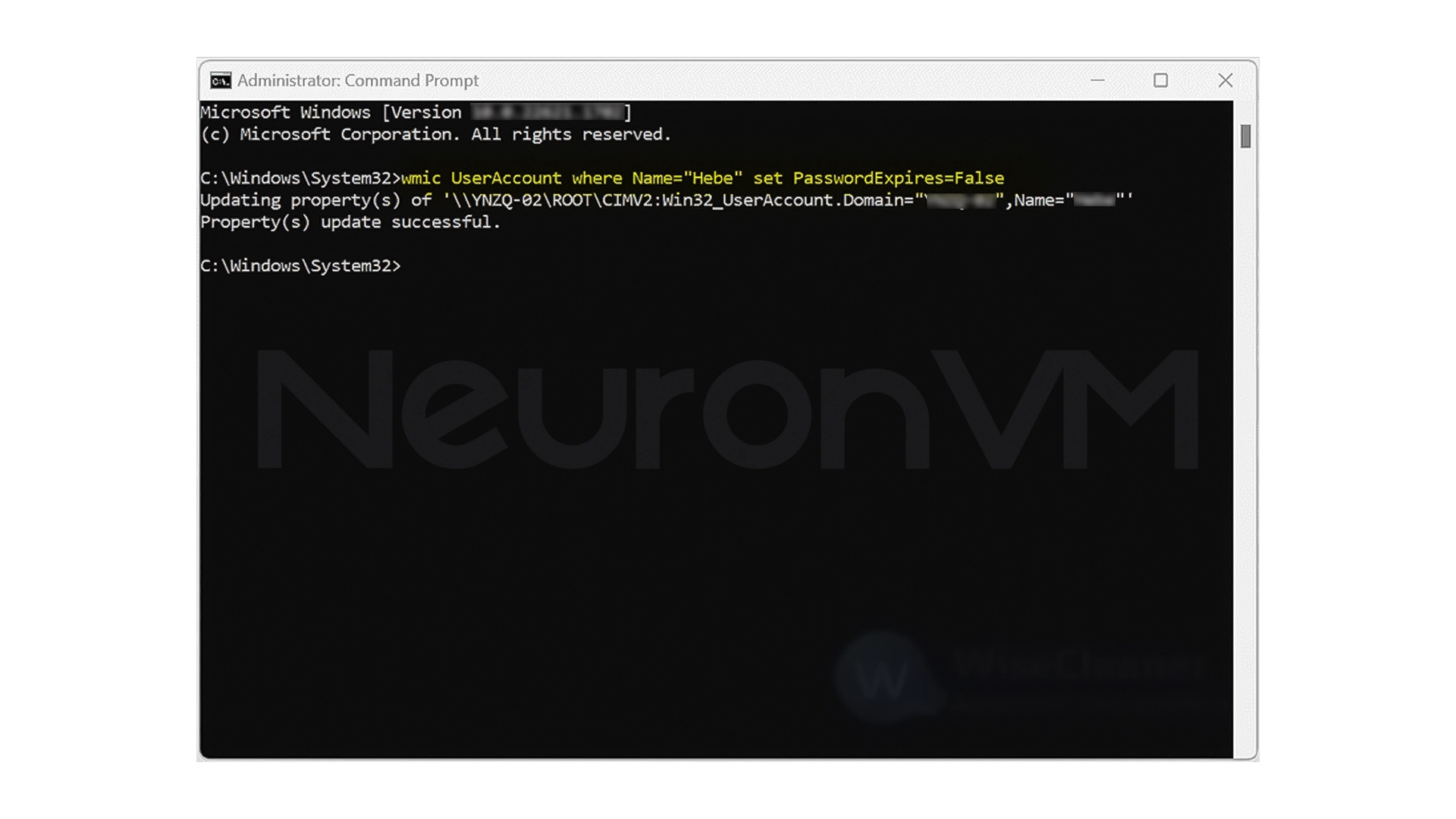
Make sure to replace Username with your user account name.
To disable password expiration for all local accounts, enter the command below:
wmic UserAccount set PasswordExpires=False
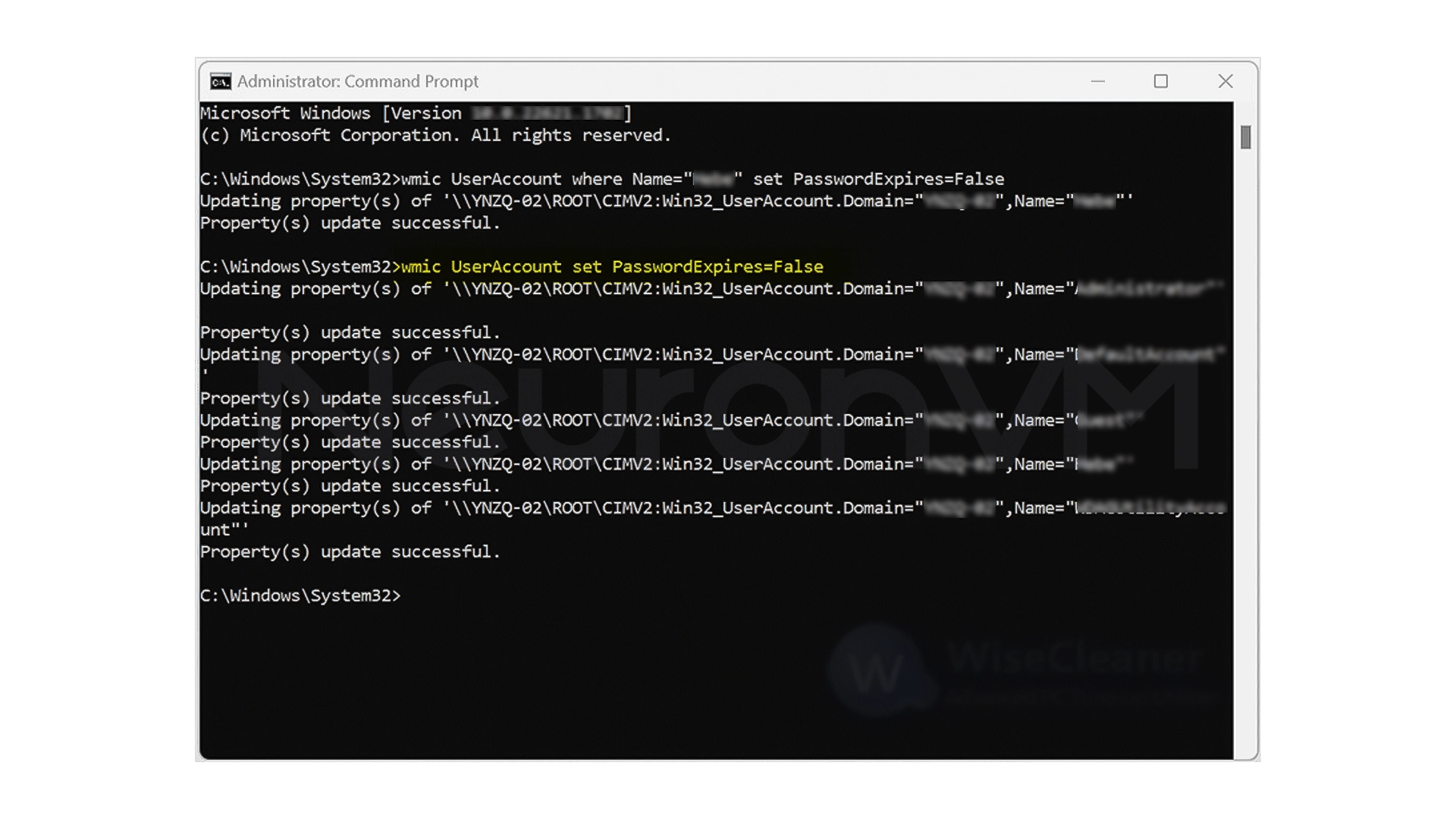
After running these commands, your system will no longer ask the user to change their password periodically.
Difference between Local and Microsoft accounts in Windows 11
Before we get into disabling the password change prompt, it’s important to clarify a basic but very important point, because this is exactly where many users make a mistake.
In Windows 11, you can use two types of user accounts:
Local account
A Local account is an account that is completely dependent on the same system and its information is stored only on the same computer. This type of account:
- Is not dependent on the Internet
- Does not sync with Microsoft email
- It is very common for personal, offline, or test environments
With Local accounts, Windows asks you to change your password by default after 42 days, and this setting can be controlled through system tools such as the Command Prompt.
Microsoft account
A Microsoft account is the account that you use to sign in to Windows with your email (such as Outlook or Hotmail). This account:
- Connects to Microsoft online services
- Syncs settings, passwords, and some information
- Typically used on laptops and systems connected to the Internet
In this case, the password change policy is managed by Microsoft itself and has a 72-day interval. For this reason, the method for disabling Password Expiration for this type of account is completely different and is done from within the Microsoft website, not from Windows itself.
My Experience
Personally, i have used the method in this article, and after disabling password change, I no longer need to remember my passwords, and after that, my focus on the daily tasks increased, this method is especially useful for those who have multiple local accounts or people who use complex passwords, because it provides a more convenient user experience, i share many of my experiences on our website, check out for more.
Conclusion
The ability to force periodic password changes in Windows 11 is designed to increase security, but in practice it is not a good choice for all users. In many personal, home or test and educational environments, constantly changing passwords not only does not significantly increase security, but also reduces concentration, forgets passwords and wastes user time, in this article, we saw that depending on the type of user account (Microsoft Account or Local Account), the method of disabling this feature is different, and each has specific and simple steps, the important thing is that this change must be made consciously, that is, the user knows in which situations it makes sense to disable Password Expiration and when it is better to leave this feature enabled, and if you decide to disable this feature, it is recommended to use alternative security methods such as choosing a strong password, enabling Windows Hello, disk encryption and automatic screen locking. Security is a multi-layered concept and is not limited to periodic password changes, ultimately, Windows 11 gives users the flexibility to customize their system to their actual needs. By understanding the settings and making informed choices, you can both have a better user experience and maintain an acceptable level of security.
 Tags
Tags

 Frequently Asked Questions
No, unless you reset the settings back to default or reset the password.rn
Yes, it is possible to set it for a specific user with local accounts.
Yes, you can re-enable password change restrictions in anytime.
You might like it

Kali Linux Tutorials
How to Install Balenaetcher on Kali Linux


Almalinux Tutorials
How to Install AlmaLinux on VirtualBox


Ubuntu Tutorials
How to Install GNOME 40 on Ubuntu 22.04 for Remote Access