
How to Save and Exit Nano Editor (Beginner-Friendly Guide)


 Study duration :
9 Minutes
Study duration :
9 Minutes
 0 Comment
If you’re new to Linux, chances are you’ve wondered this the first time you opened the Nano editor: “So… how do I save and exit?” I got stuck right here the first time I opened Nano, I had written the text, but every time I pressed a button, it wouldn’t save, or I was afraid it would erase everything, The good news is that Nano is one of the easiest and most user-friendly text editors on Linux, you just need to know a few basic keys, in this article, you’ll learn step-by-step:
Right here, the first time I opened Nano
- How to save a file
- How to exit Nano
- How to save and exit at the same time
- And if you don’t want to save, how to exit without any hassle
What exactly is Nano, and why is it so widely used?
Nano is a terminal text editor that comes preinstalled on almost every Linux distribution, It’s lightweight and is great for tasks like:
- -Editing configuration files
- -Changing server config
- -Quickly editing a text file
But since it’s not graphical, everything is done with the keyboard, and it can be confusing at first.
How to Save in Nano?
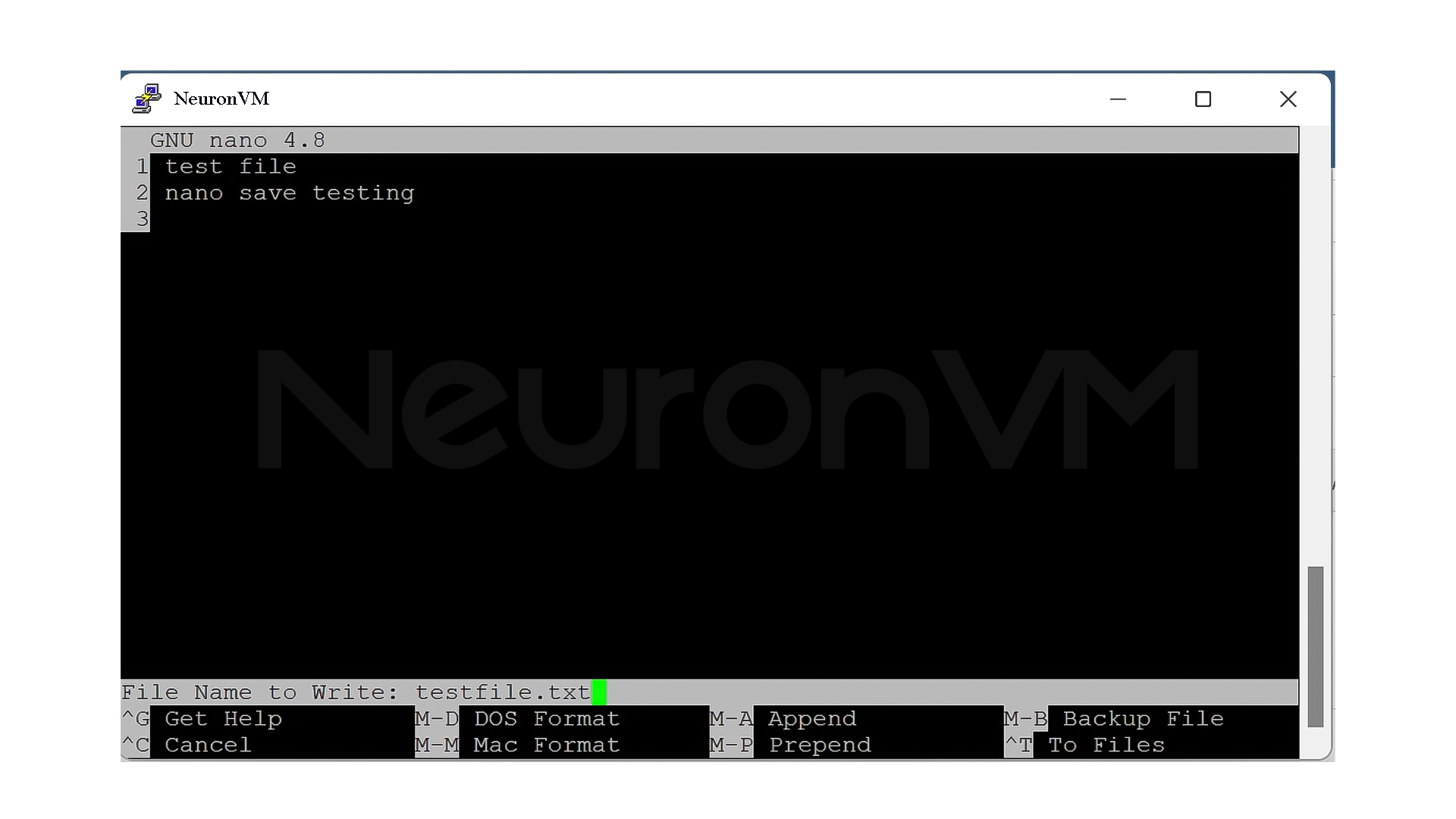
When you write or change something in Nano, you must execute the save command to save it, Nano will ask you to:
1- Save the file with the same name, or create it if it doesn’t exist
A few important things that many people don’t know at first:
2- If you don’t have write access, the save won’t work
3- If the file is new, Nano will create it when you save
4- Always read the message at the bottom of the page, Nano is very clear about how to do it
How to Exit Nano?
There is only one command to exit Nano, but Nano’s behavior when exiting depends on:
- -Whether you have made any changes or not
- -Whether the file has been saved or not
If you have not made any changes, Nano will close directly.
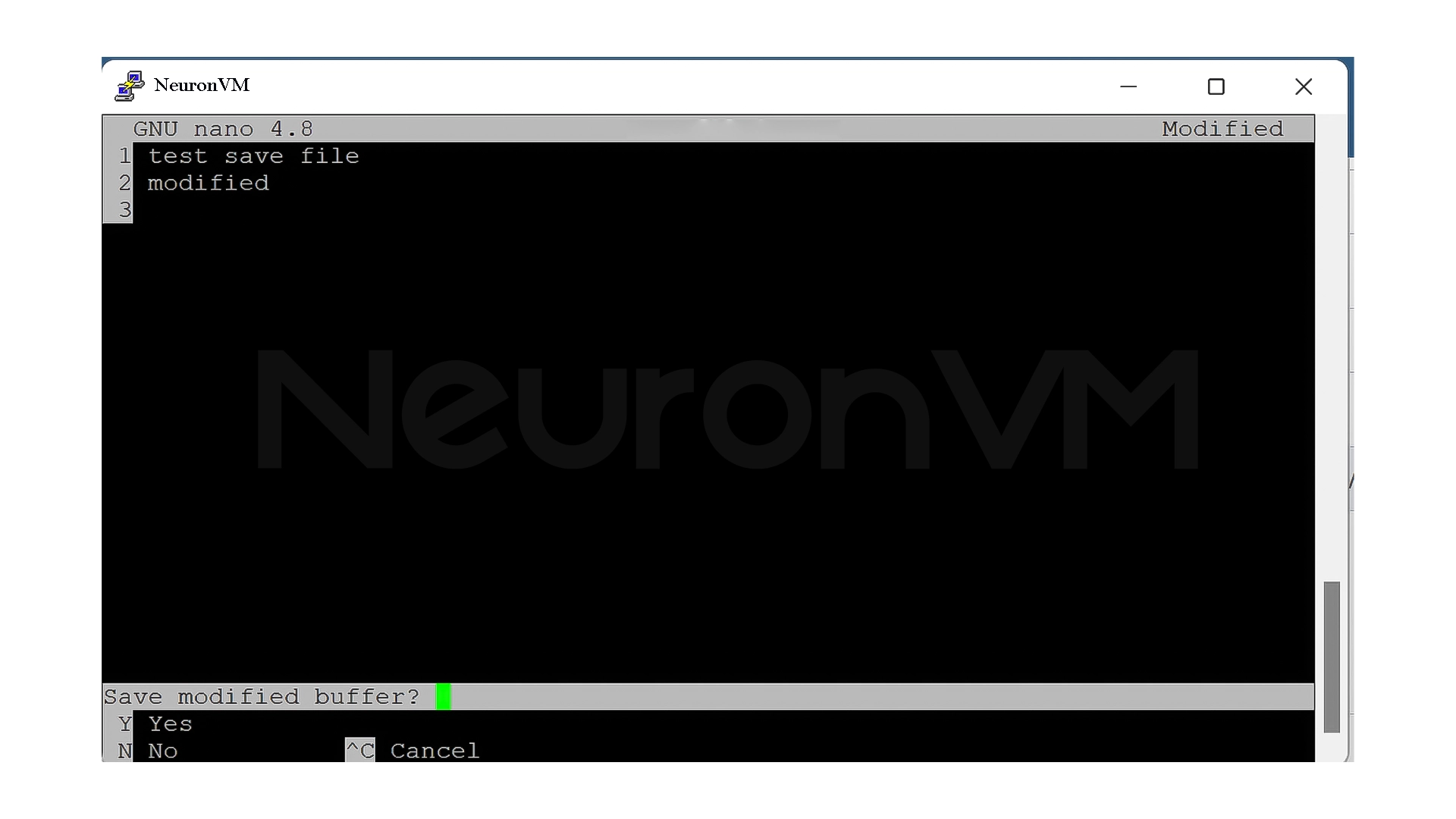
If you have made any changes, it will ask you:
- -Save?
- -Don’t save?
- -Or do you want to cancel the exit altogether?
This is where many people make mistakes and unintentionally lose their changes.
How to Save and Exit Nano?
Here’s the most common scenario:
- -You’ve edited a file
- -You’re out of memory
- -You want to make sure your changes are saved and then exit
Nano is designed for this very situation, and it prompts you step by step to make sure nothing goes wrong, if you just pay attention to its messages, there’s actually very little chance of losing your changes.
How to Exit Nano Without Saving?
Sometimes you just enter a file to look at it, or you made a mistake and decided to discard all your changes.
Nano gives you this option very clearly:
- -It asks you when you exit
- -And you can easily say not to save
This is one of the things that makes Nano more humane than many other editors.
Some Useful Nano Commands That Really Come in Handy
Nano is full of useful commands, but you don’t need to memorize them all, Some of the most important ones:
- Open the built-in help
- Go to the beginning or end of the line
- Quickly move between pages
- Go to a specific line
- Search within the file
- Delete a line or character
- Save the file
- Exit the editor
Important note: Any command that has a ^ symbol next to it means that it must be executed with the Ctrl key.
My Experience with Nano
In my early days with Linux, I had more problems with myself than with Nano, I was in a hurry, I didn’t read the message at the bottom of the page, and I thought Nano was like a graphical editor.
A few times:
- -I closed the file without saving
- -The changes weren’t applied
- -And then I searched for the reason
Since I always kept these three things in mind:
- Read the bottom of the page
- Check the save status before exiting
- Don’t rush
Nano has become one of the safest tools I work with, now, even if I’m on the server in the middle of the night, I can edit the file without stress, and I’m sure I won’t lose anything.
Conclusion
Despite its simple appearance, Nano can be quite confusing if you don’t know how to save and exit with it, most of the stress we have working with Nano is not because it’s difficult, but because we’re not familiar with a few basic commands, once you know:
- -When your changes are saved
- -Exactly what Nano asks you before exiting
- -And how you can consciously save or exit without saving
Working with it becomes a fast and safe experience, not guesswork, Nano is one of those tools that you don’t have to be a pro to use; you just need to learn its simple language, From the moment you read the messages at the bottom of the screen and don’t rush, Nano is no longer an enemy, it’s a reliable tool, If you remember these few simple tips, the next time you log into Nano, you’ll know exactly what to do, no stress, no lost changes, for more tips check out neuronvm.




Because you have made changes to the file and Nano wants to make sure that you save them or discard them intentionally.rn
All the changes you have made will be lost and the file will revert to its previous state.
Yes, Nano is one of the easiest and safest Linux text editors to get started with.