
How to Exit Bash Scripts on Errors (Exit Codes, set -e, trap)


 Study duration :
10 Minutes
Study duration :
10 Minutes
 0 Comment
If you’ve ever worked with Bash Scripts, you’ve probably experienced this: Your script runs, it encounters an error somewhere, but the script continues without you realizing it, and then everything falls apart, I’ve wasted a lot of time on this myself, a simple script to create a directory or take a backup would bring down half the server because of a small error and this is exactly where error handling and exiting properly in Bash comes into play, in this article, you’ll learn step by step:
- What exactly is an exit code
- How to stop a script when an error occurs
- When should the entire script stop, and when not
- And how to make your scripts more professional and reliable, check out our website if interested
An Ultimate Guide to Exiting on Errors in Bash Scripts
Understanding Exit Codes in Bash
Exit Code is a number that each command returns after execution and specifies the status of that command’s execution, In Bash:
- 0: successful execution
- 1 to 255: error or special condition
For example:
1- Command executed successfully: 0
2- File or directory does not exist: a number other than zero
Important note: Bash only cares about the number, not the error text.
1- Using the exit command and exit codes
The easiest way to exit a script when an error occurs is to use “exit” directly, Here is a simple example:
#!/bin/bash

mkdir /tmp/example

if [ $? -ne 0 ]; then

exit 1

fi
Output will be like:
![output for [ $? -ne 0 ]:](https://neuronvm.com/wp-content/uploads/2025/12/tmp-example.webp)
What happened here?
- “mkdir” is executed
- With “$?”, the execution status of the previous command is checked
- If it is not zero: the script exits with code 1
This method is very suitable for small and educational scripts.
2- Using the “set -e” option
If you want your script to start at the first error, “set -e” is the best choice for you.
#!/bin/bash

set -e

mkdir/ tmp/ example
Output:
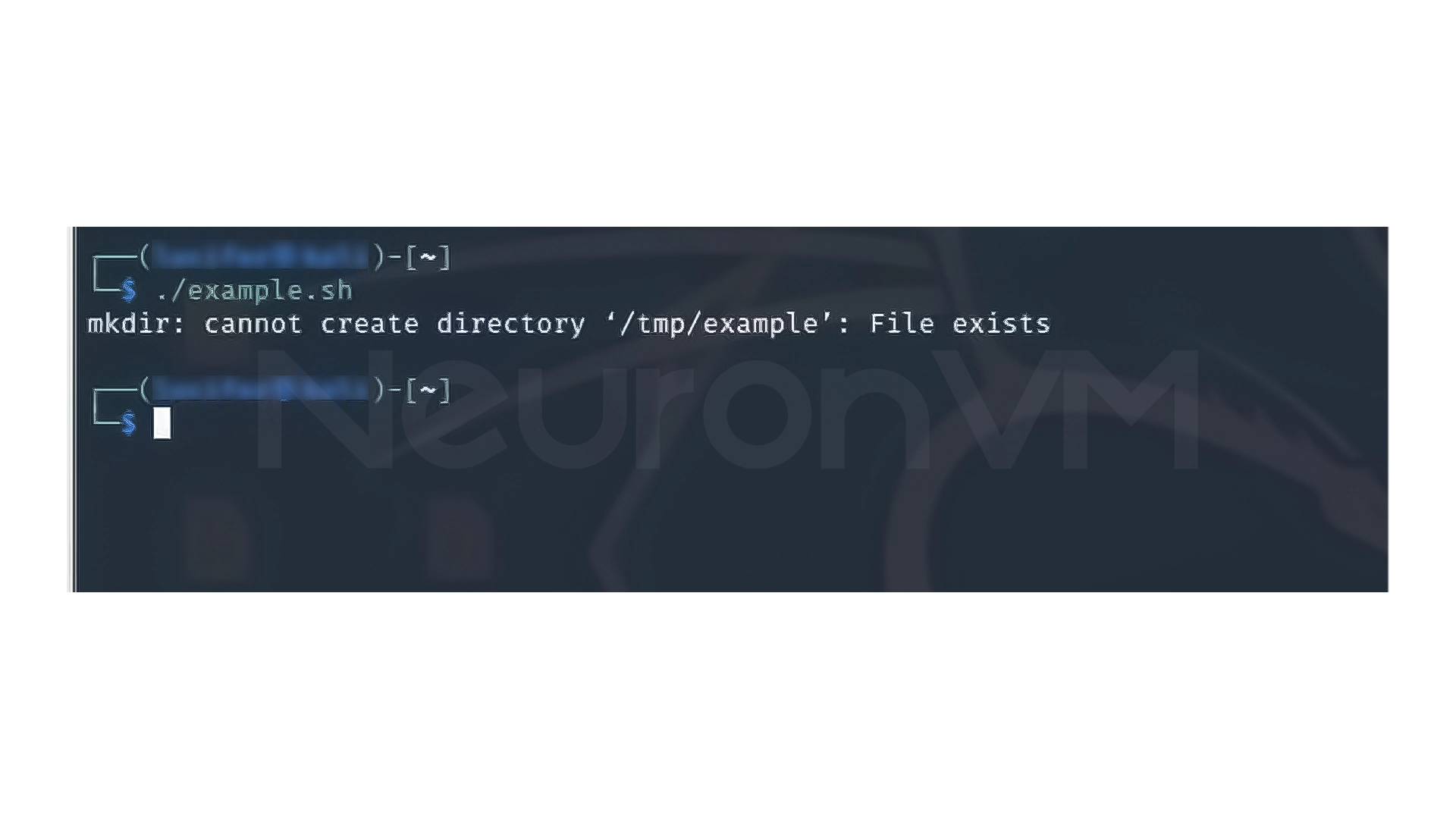
In this case, if mkdir fails, the script will exit immediately, and there is no need to check “$?”.
Important warning:
set -e can be dangerous in large scripts, because:
- Inside functions
- Inside subshells
- It will also cause the entire script to exit
3- Using the trap command
trap is one of the most advanced Bash tools for script exit management.
#!/bin/bash

trap 'rm -rf /tmp/example' EXIT

mkdir /tmp/example

# some commands here

exit 0
Output:

What happens there?
Whether the script completes successfully or exists due to an error, the command inside the trap is executed.
Common uses:
1- Clearing temporary files
2- Releasing resources
3- Logging before exiting
4- Error Handling with Command Substitution
Sometimes we need to save the output or error of a command.
#!/bin/bash

result=$(mkdir /tmp/example)

if [ $? -ne 0 ]; then

echo "Error: $result"


exit 1


fi
Outpt:
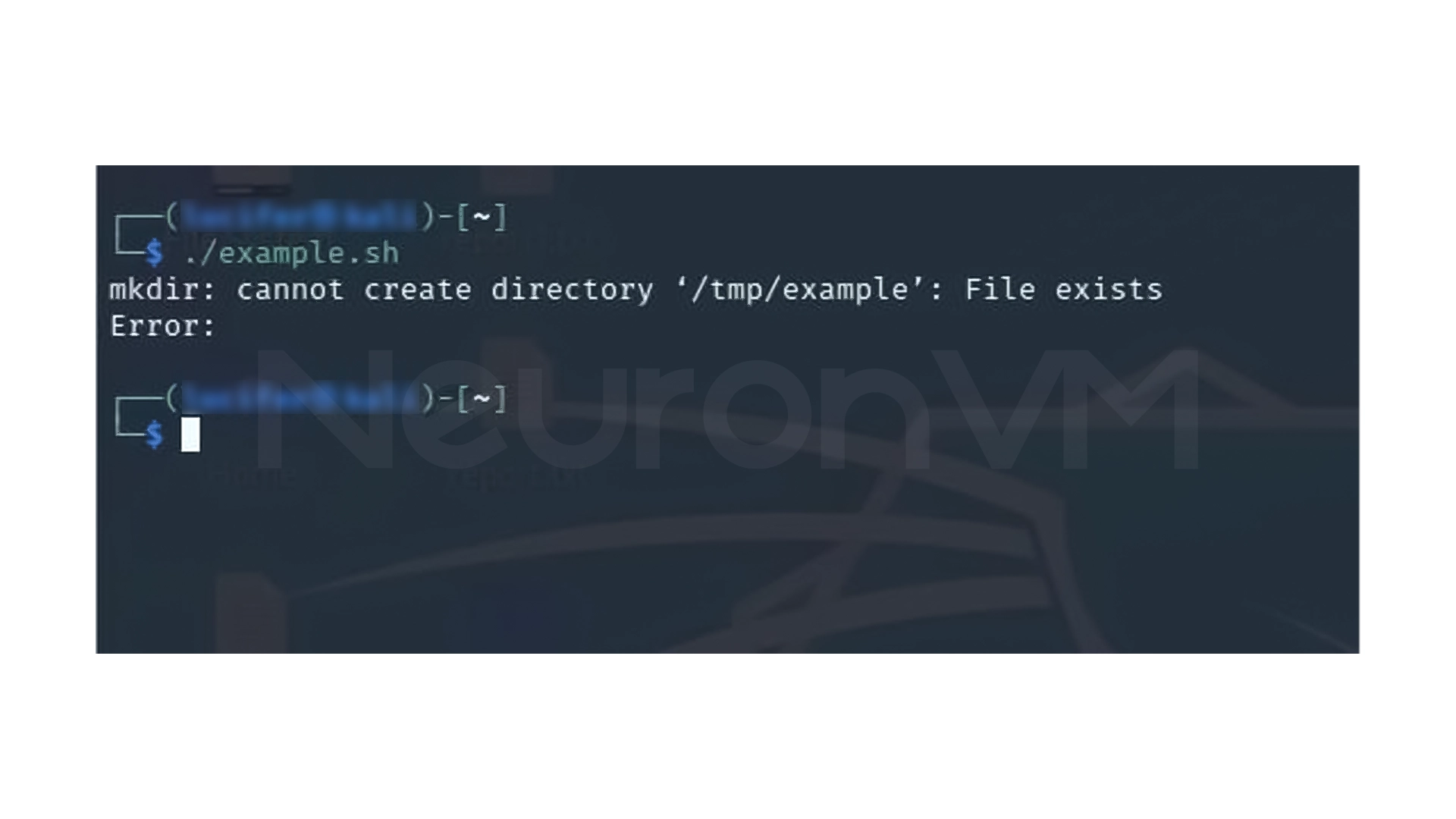
In this case:
- The output of the command is saved in the result
- If there is an error, the appropriate message is displayed
This method is more useful for scripts that require detailed logging.
5- Suppressing Errors
Sometimes you don’t want the error message to be displayed in the terminal.
#!/bin/bash

mkdir /tmp/example 2> /dev/null

if [ $? -ne 0 ]; then

exit 1

fi
Output:

Here:
- Standard errors (stderr) are discarded
- But the Exit Code is still checked
It is suitable for clean and automated scripts.
6- Exit script when any command fails
First method: set -e
#!/bin/bash

set -e

ls /nonexistent_directory


echo
If the directory does not exist:
- The script stops there
- The next line will not be executed
Output:

Second method: using ||
#!/bin/bash

ls /nonexistent_directory || exit 1

echo
Output:
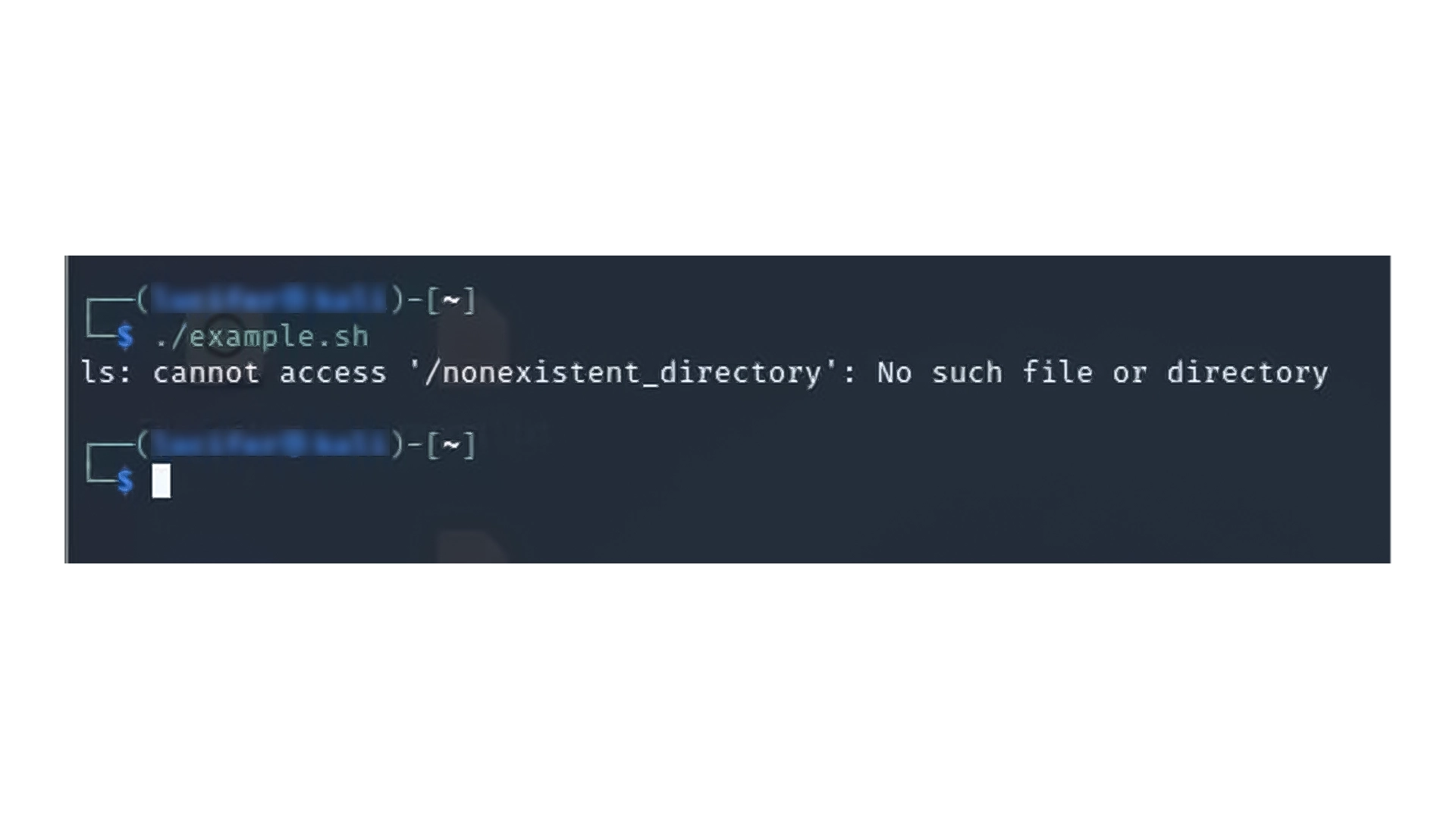
Simple logic:
- If the command on the left fails
- The command on the right is executed (exit)
Method 3: Check $? with if
#!/bin/bash

ls /nonexistent_directory


if [ $? -ne 0 ]; then


echo "Command failed"


exit 1


else

echo "Command Successful"


fi
Output:
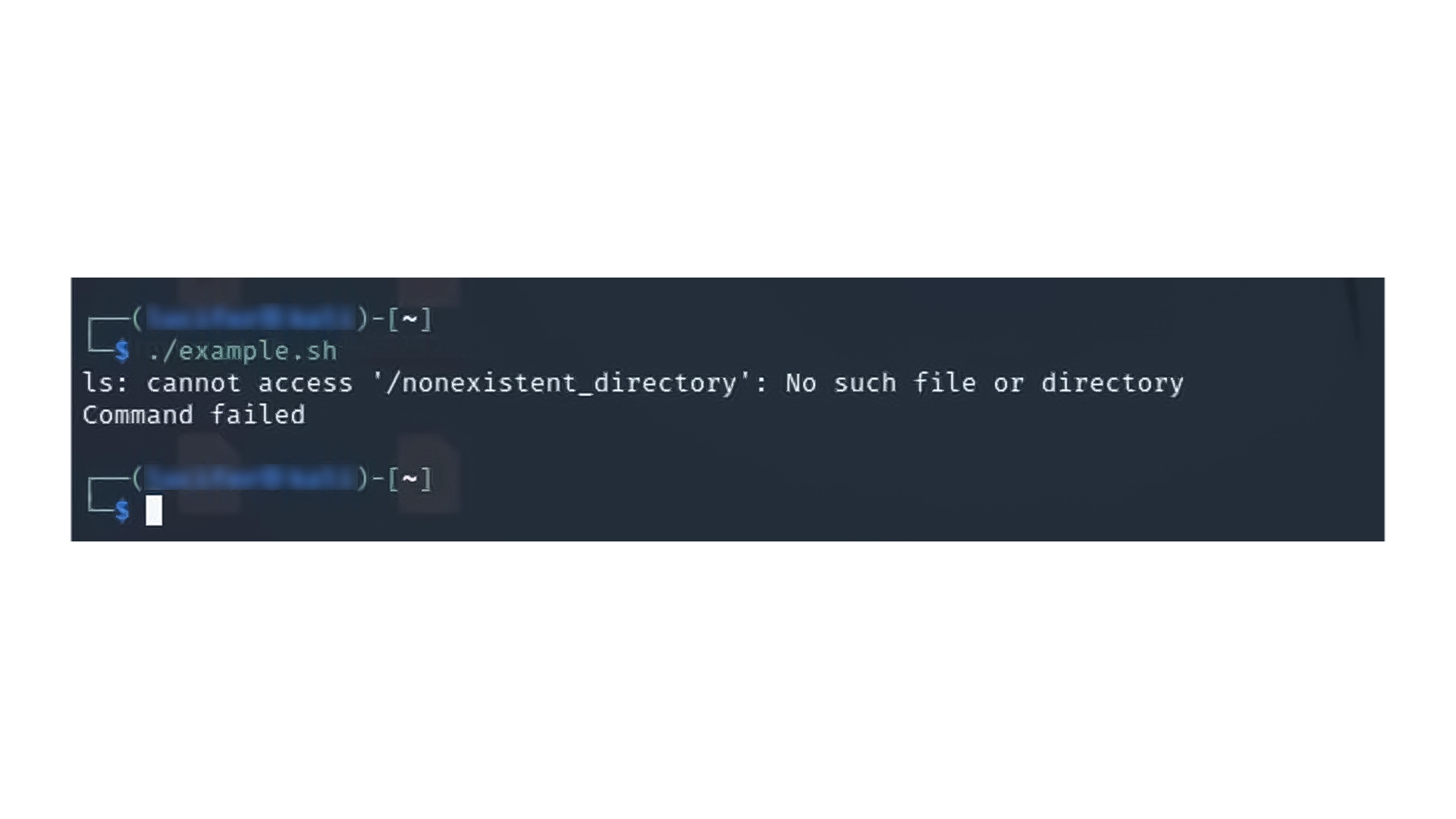
This method is more readable and suitable for training scripts.
7- Exit only when certain commands fail
You don’t always want the script to stop on every error.
#!/bin/bash

ls /nonexistent_directory || exit 1


echo

rm /nonexistent_file || true


echo
Output:
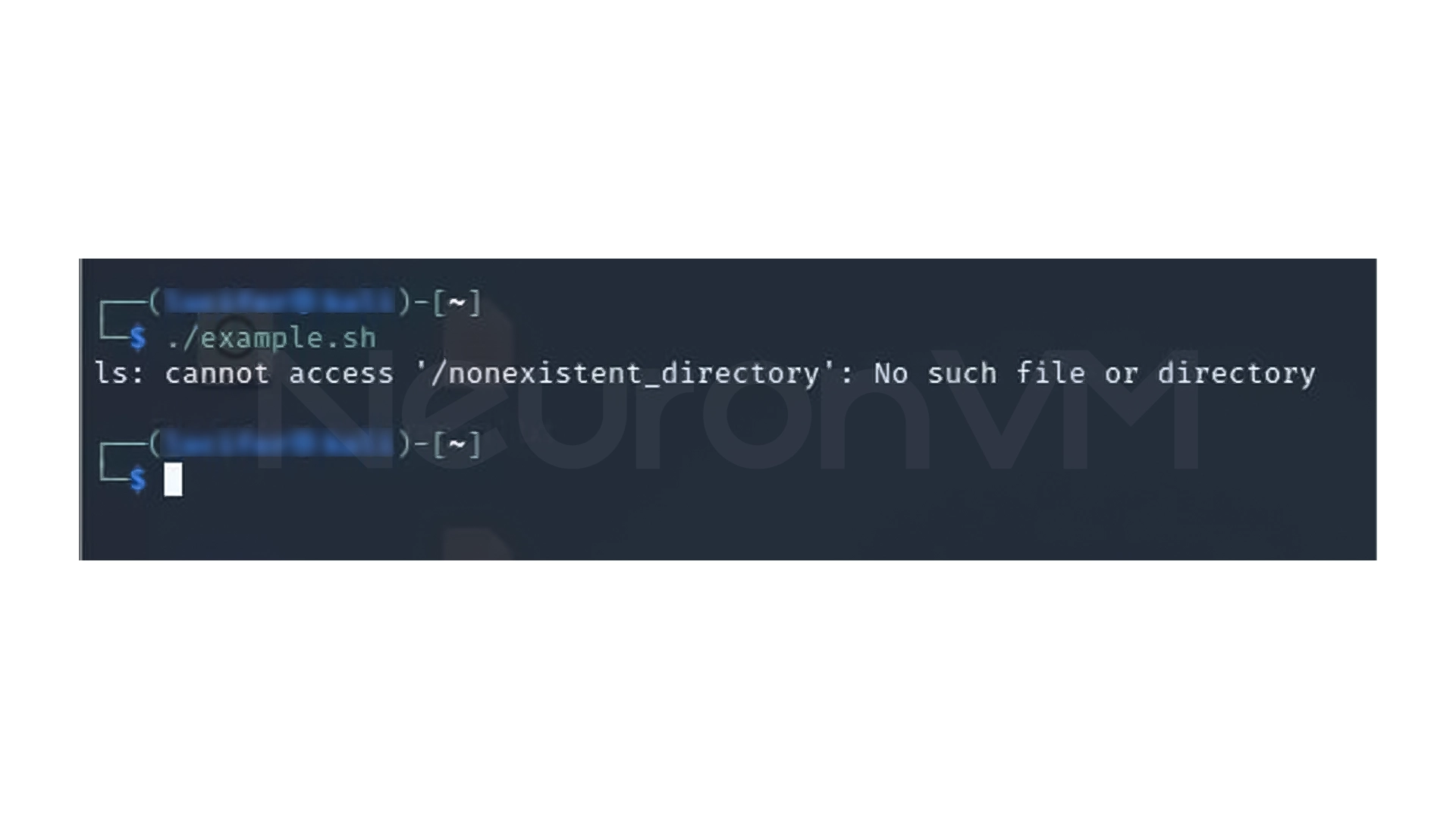
Here:
- If ls fails, the script exits
- But “rm” errors are ignored
The true command intentionally returns an Exit Code of zero.
My Personal Experience Exiting on Errors in Bash Scripts
When I first started working with Bash, I just wrote commands one after the other in almost all my scripts, without any checking, The result?
- The script would run half-heartedly
- The logs were incomplete
- And worst of all, it took a while to figure out where it went wrong
Since:
- I used set -e with caution
- I put || exit for sensitive parts
- And used trap for cleanup
My scripts have become more reliable and more professional.
Conclusion
Error handling in Bash is not just a theoretical discussion or code cleaning, The reality is that most annoying bugs come from the exact place where the script silently continues after an error.
To put it simply:
- Bash itself does not understand your intention
- If you do not tell it to “stop here”, it will continue
- And continuing can ruin your entire output
With what you have seen in this article:
- You know what an Exit Code is and how to read it
- You know when to stop a script with exit or ||
- You know when set -e is a good choice and when it’s not
- And you know how to clean up your script with trap before exiting
If you use even one of these methods in your scripts correctly, Many errors that you would have previously discovered later and with difficulty will be prevented right away, and Bash is simple, but that’s where the pro part starts: Controlling what happens after an error.




To remove temporary file and log files.
exit stops the script on your command, autostop stops the script on the first error.
A combination of stopping on critical errors and cleaning up before exiting results in reliable, professional scripts.