How to Install and Use Webmin on AlmaLinux

 Study duration :
6 Minutes
Study duration :
6 Minutes
 0 Comment
The Control Panel is a set of sub-programs that can be used to configure various aspects of the Operating System. The Control Panel is the center of all operating system settings and is designed to make changes to the mouse, keyboard, sound, speakers, and screen. Webmin is also a Control Panel and Graphical User Interface for hosting. After reading this article, you can learn how to Install and Use Webmin on AlmaLinux 8.4 from the AlmaLinux training series.
What is Webmin?
Webmin is a web-based Control Panel and Graphical User Interface for Linux systems that can be used for free. You can configure all aspects of the system through your web browser with Webmin. It should note that Webmin removes the need to manually edit Linux/Unix configuration files, allowing you to manage a server from the console or remotely. It also allows you to control many machines through a single interface or seamless access to other Webmin hosts on the same subnet or LAN.
Webmin Features
1- Configure Email Server 2- Configure Apache Web Server 3- Configure DNS Server 4- Data Backup 5- Manage users and User groups
How to Install Webmin on AlmaLinux 8.4
First, you should buy a Linux VPS with the AlmaLinux Operating system. Then, switch to root user and log in as root to run all commands:
sudo -i
You need to add the yum Webmin repository to AlmaLinux 8.4 so that you can fetch Webmin packages for installation. Enter the following command in your Terminal and press Enter:
cat << EOF > /etc/yum.repos.d/webmin.repo
[Webmin]
name=Webmin
mirrorlist=https://download.webmin.com/download/yum/mirrorlist
enabled=1
gpgkey=http://www.webmin.com/jcameron-key.asc
EOF
Then you should update the system by entering the following command, which refreshes the repository cache and makes the system recognize the latest added repo of Webmin:
dnf update
In this step, you can download and install Webmin on the AlmaLinux RPM-based Linux Operating System:
dnf install webmin
Next, you should open Webmin port 10000 in the firewall to access the web interface of this web-based system configuration tool from any system browser that can access the IP address of the server or domain. Run the following command:
firewall-cmd --add-port=10000/tcp --permanent
firewall-cmd --reload
How to Use Webmin on AlmaLinux 8.4
Open Webmin through your web browser and specify the name of the computer and port that Webmin is running on. Note that if the Webmin installed in AlmaLinux is managed through a browser, its IP address or domain should be specified in the URL box along with port 10000. But if you are using Webmin in a GUI system, the management should be done using the local URL in the web address http://localhost:10000 and if only encrypted communication is possible in the system, just replace http with https:
https://server-ip-address:10000
or
https://example.com:10000
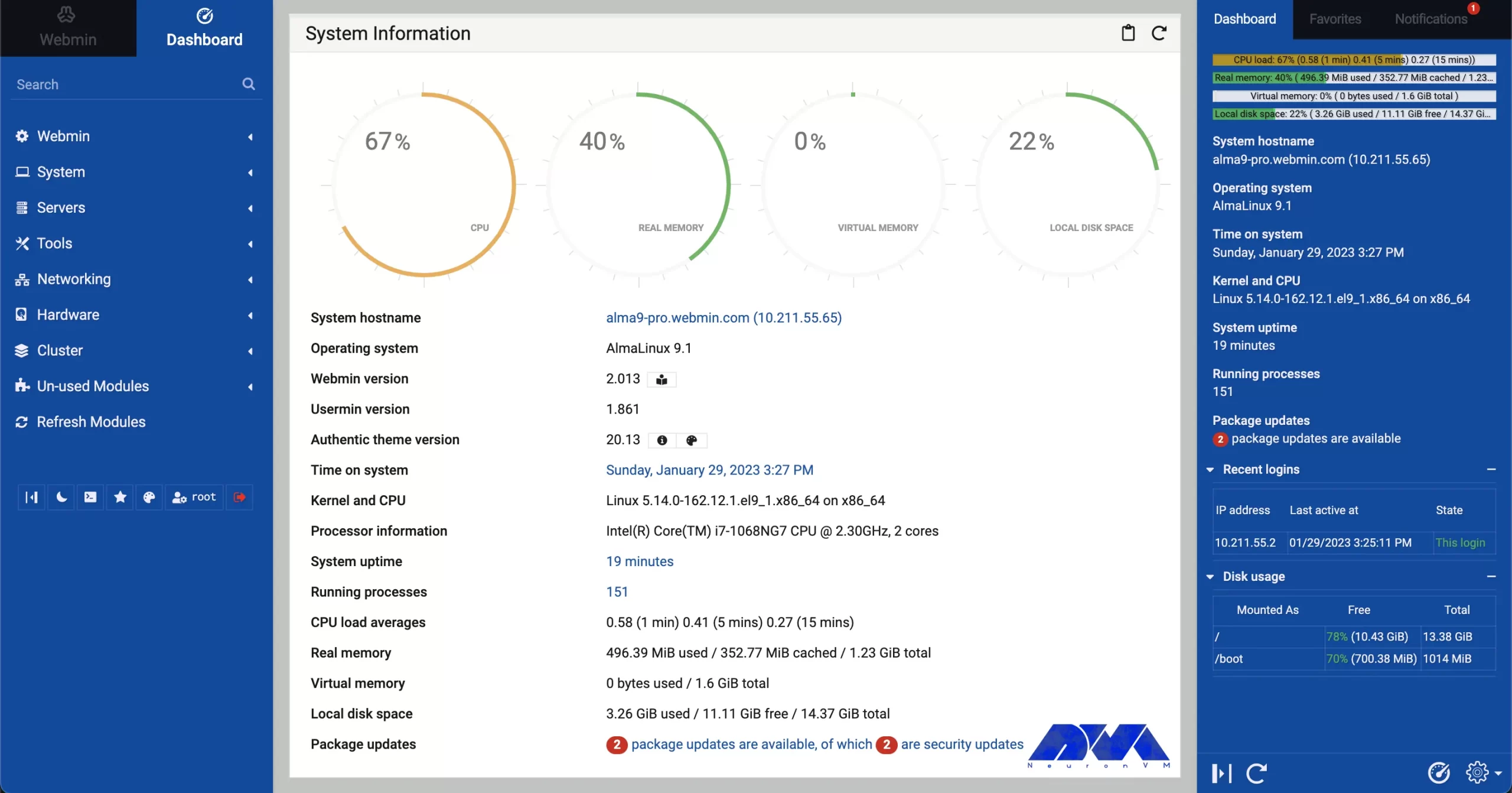
If SSL isn’t implemented, you will receive a ‘Your connection is not private‘ alert. You should click on Advanced and then click the Proceed to x.x.x.x link. Now you should enter your username and password. Be sure to enter AlmaLinux 8.4 server root as your username and password. The Webmin Dashboard running on AlmaLinux is as follows, where the user can manage its server:
Conclusion
Webmin is easy to use and offers several options for administrators to manage their Linux server through web-based remote access. In this article, Webmin Control Panel was introduced and how to install and use Webmin on AlmaLinux 8.4 was taught.