How to Install Virtualbox on Windows RDP 2016

 Study duration :
7 Minutes
Study duration :
7 Minutes
 0 Comment
VirtualBox is part of the software released by Oracle. Using this software, operating systems are installed on virtual computers. In this case, the performance of the operating system is the same as when it is installed on real hardware. There are also many applications for virtual machines. One of the best and safest ways to virtualize is to install VirtualBox. This software provides users with another operating system on the computer without causing any problems. It should also be noted that VirtualBox is free for home users. Because of the importance of this topic, How to Setup Virtualbox on RDP 2016 will be taught.
Prerequisites:
– An Admin RDP or Windows VPS with Windows server 2016 operating server
– Hardware virtualization support: Your server CPU must have hardware virtualization support (Intel VT-x or AMD-V) to run Virtualbox.
– Sufficient RAM: Make sure that your server has enough RAM to run Virtualbox smoothly. The minimum recommended RAM for Virtualbox is 2GB, but more is preferable for better performance.
– Disk space: Allocate enough disk space for Virtualbox and the virtual machines you plan to run. The installation itself requires only a few hundred megabytes of disk space, but the virtual machines can take up a significant amount of space depending on their size.
– Administrative privileges: You need to have administrative privileges on the server to install and run Virtualbox.
How to Install Virtualbox on RDP 2016
First, You should go to the Virtualbox website and click Windows Hosts:
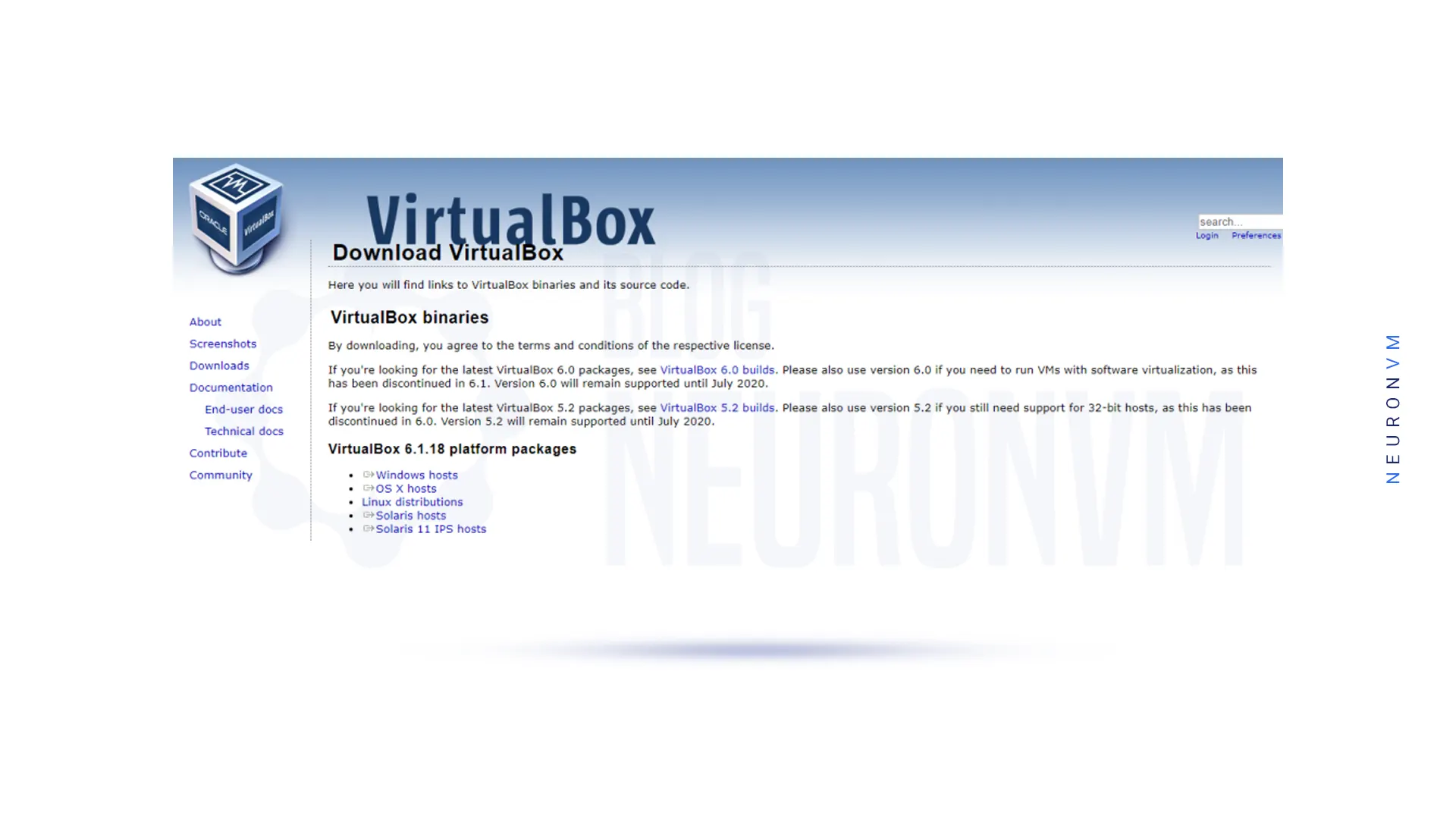
After the download is complete, you must go to the downloads folder and double-click on Virtualbox Installer.
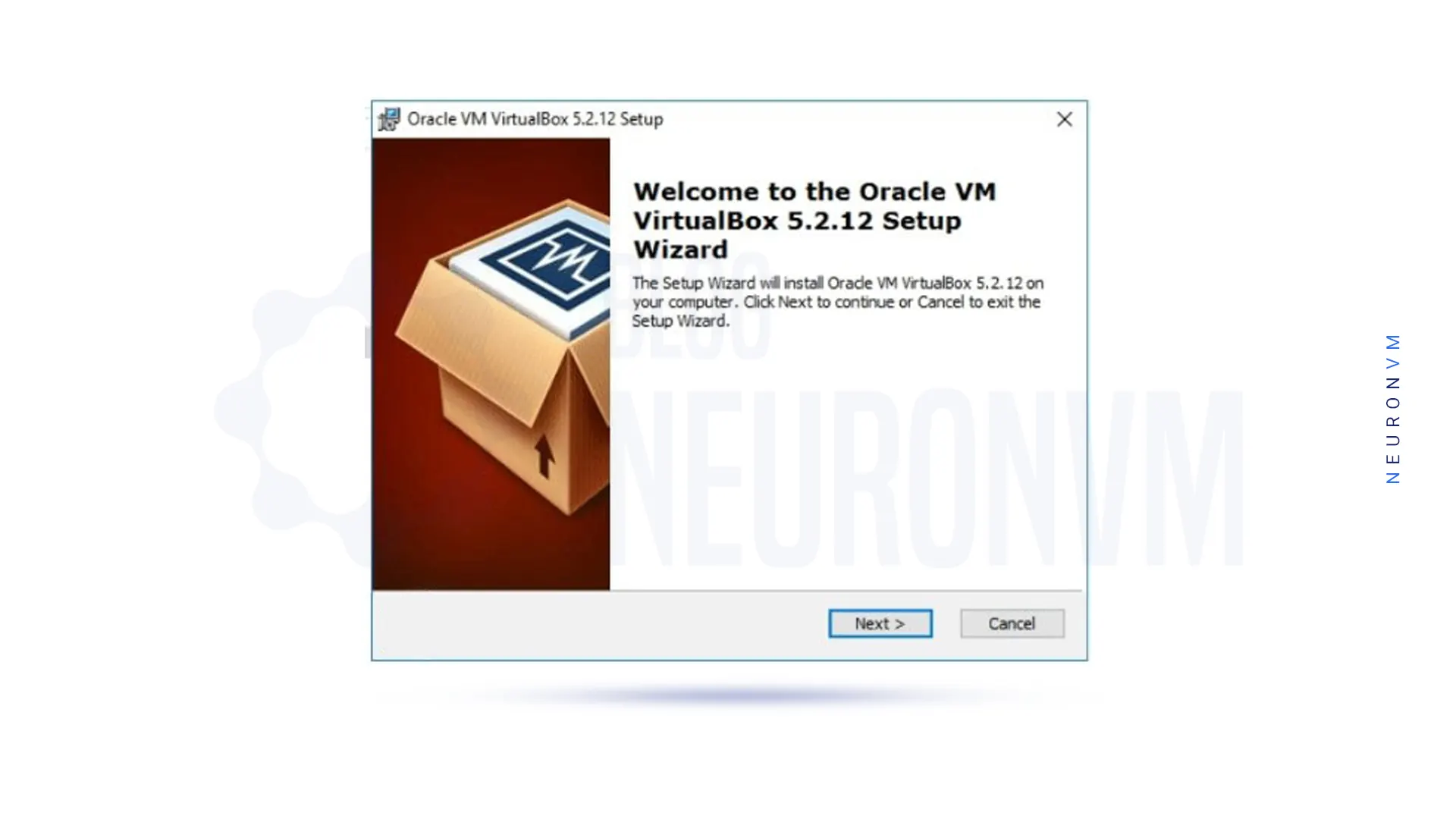
In the next step, you will see the following window, click Next:
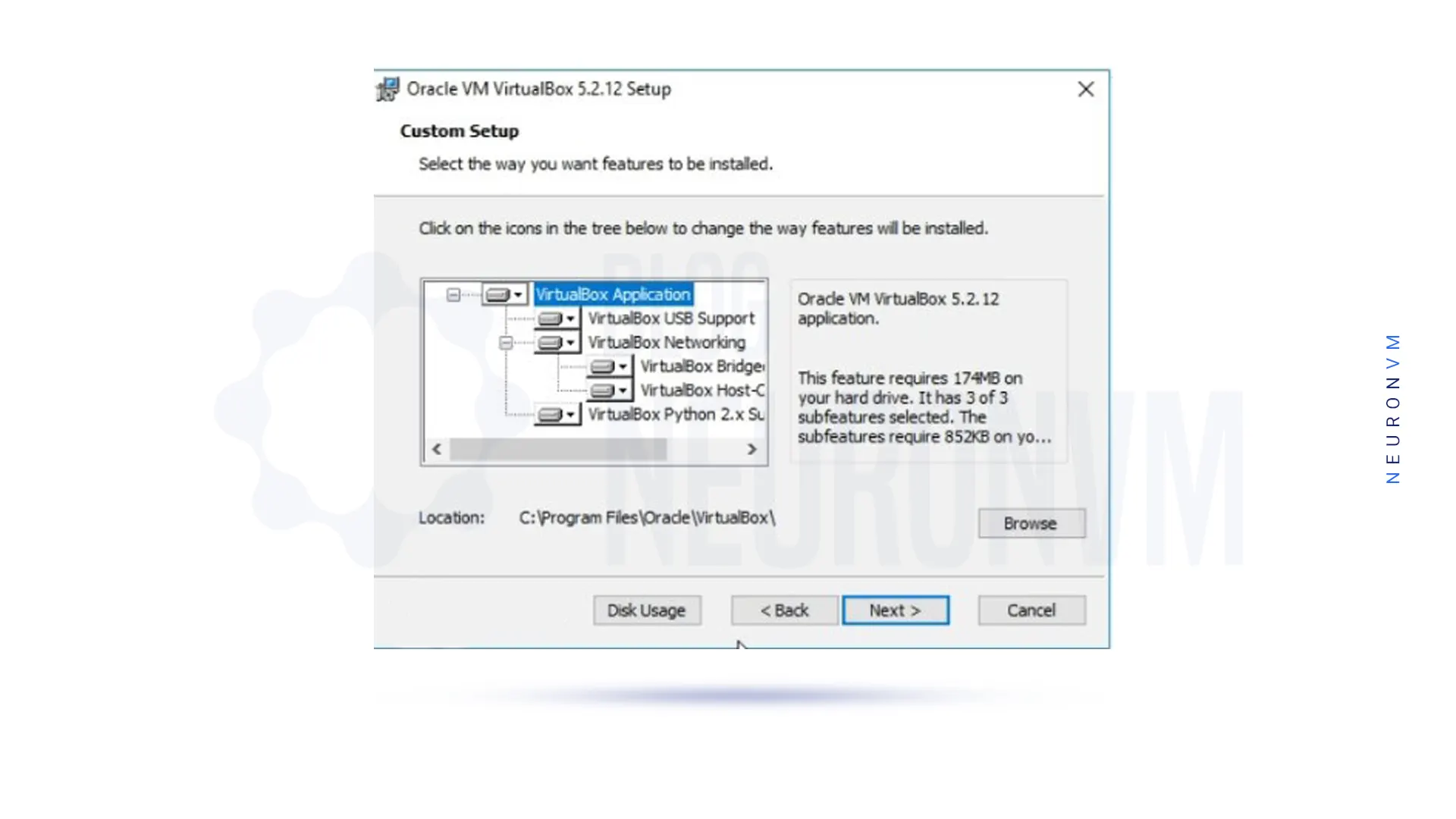
The next step is to customize the installation. As you can see, the VirtualBox Application is selected by default. Click Next to continue the installation process:
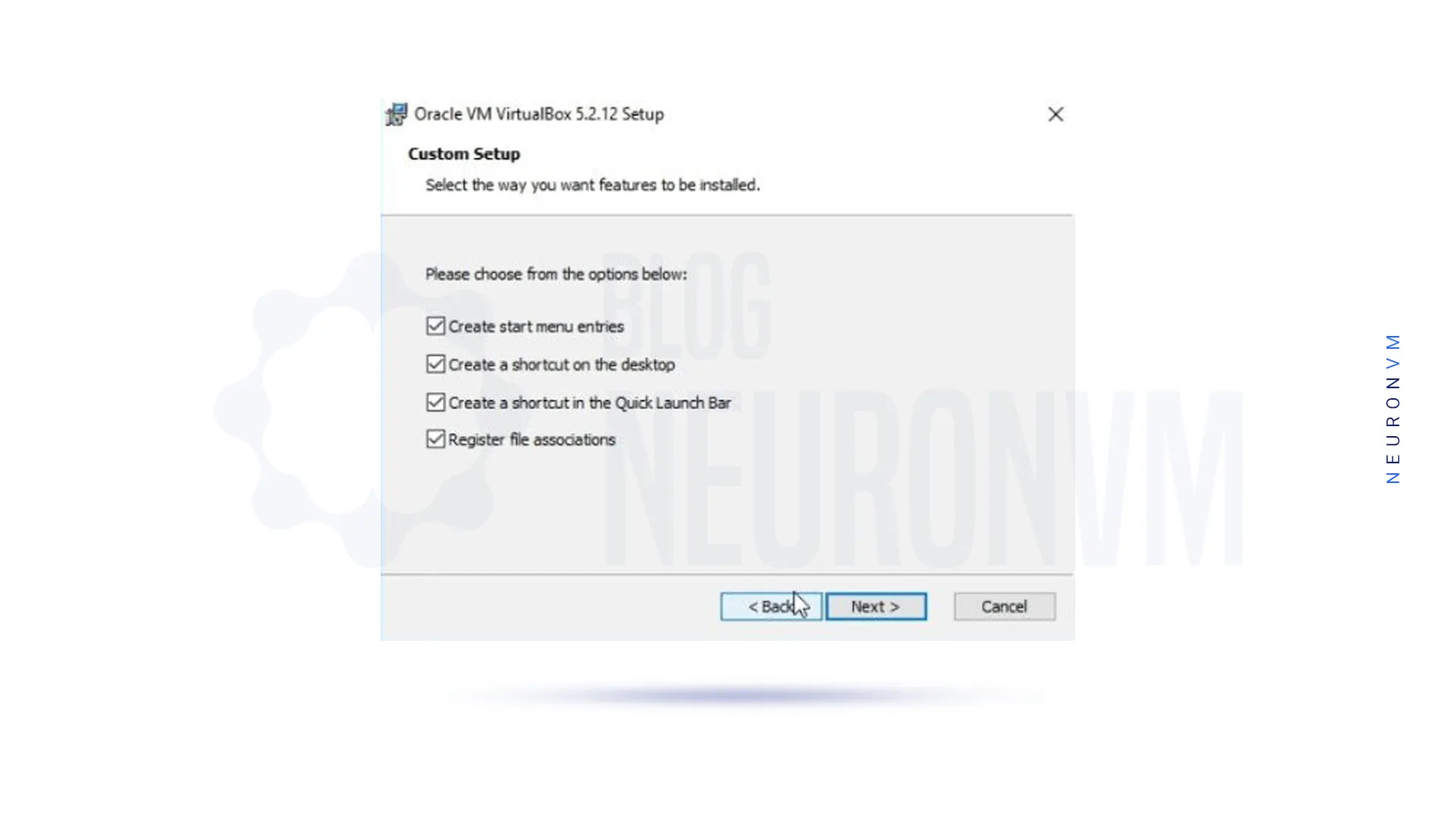
In the next step, check your preferred options for displaying VirtualBox and click Next:
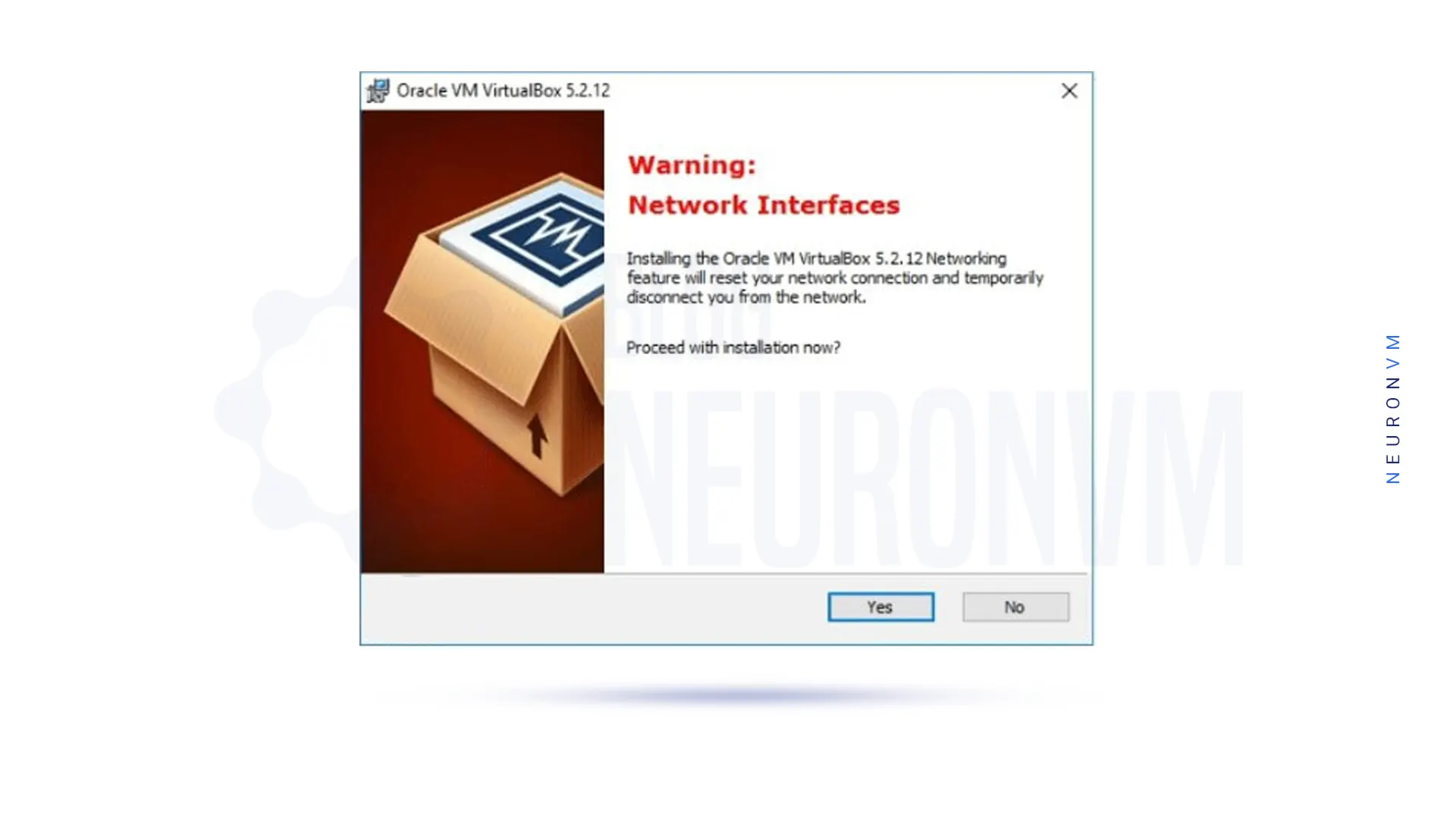
In the window that opens, click Yes:
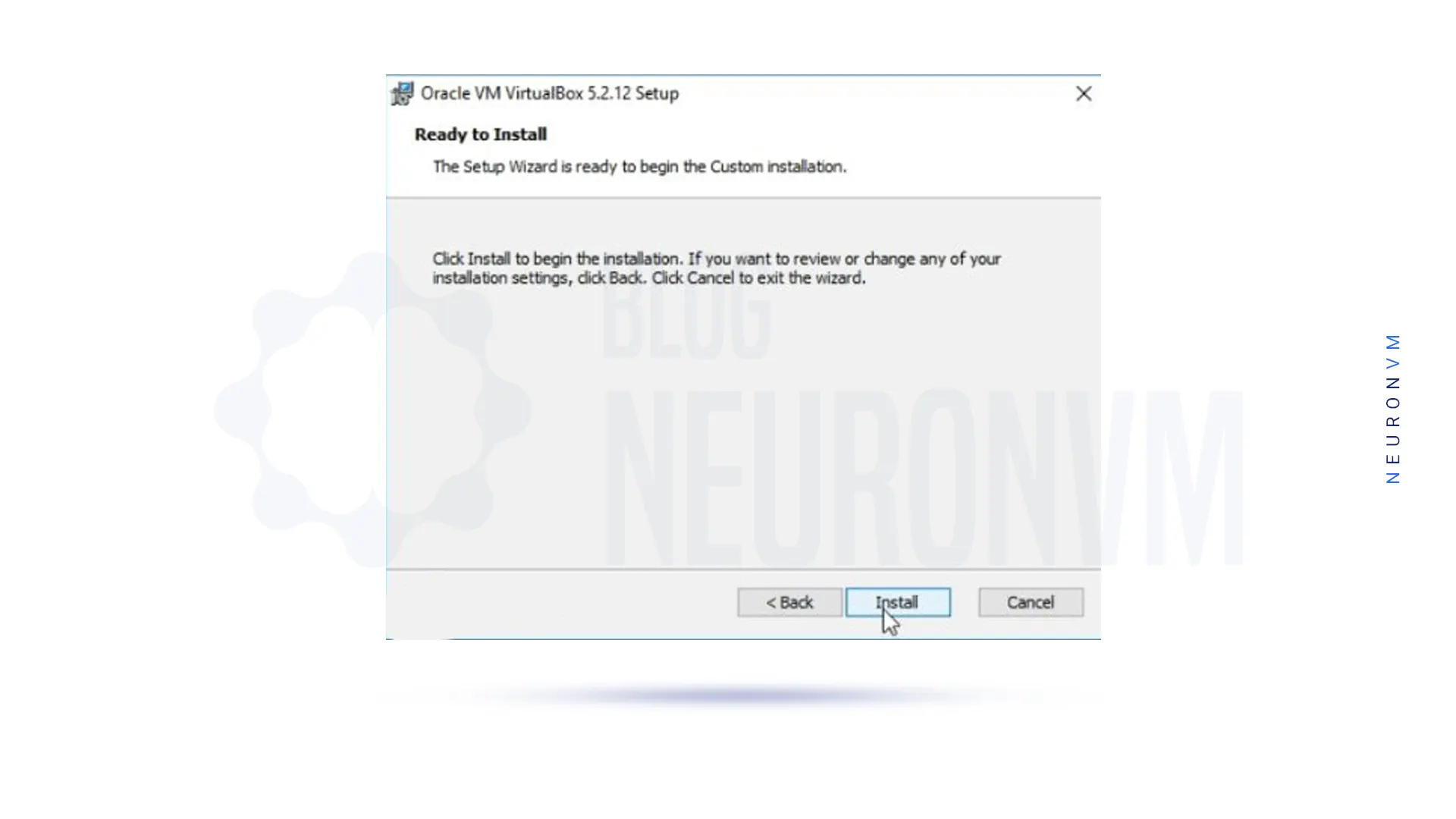
Click Install to begin installing VirtualBox:
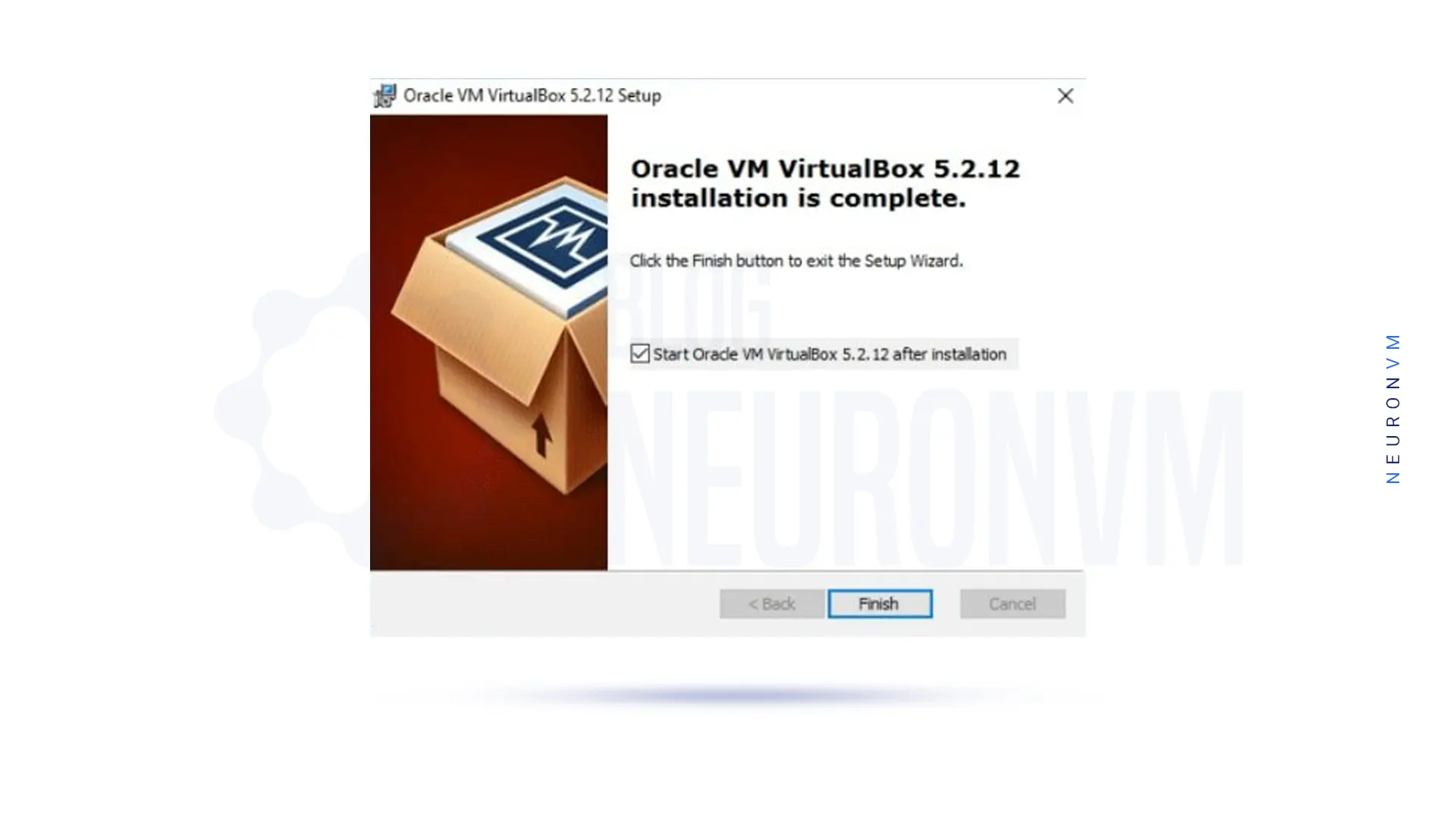
Finally, click Finish to complete the VirtualBox installation:
Tutorial Setup and Use Virtualbox on RDP 2016
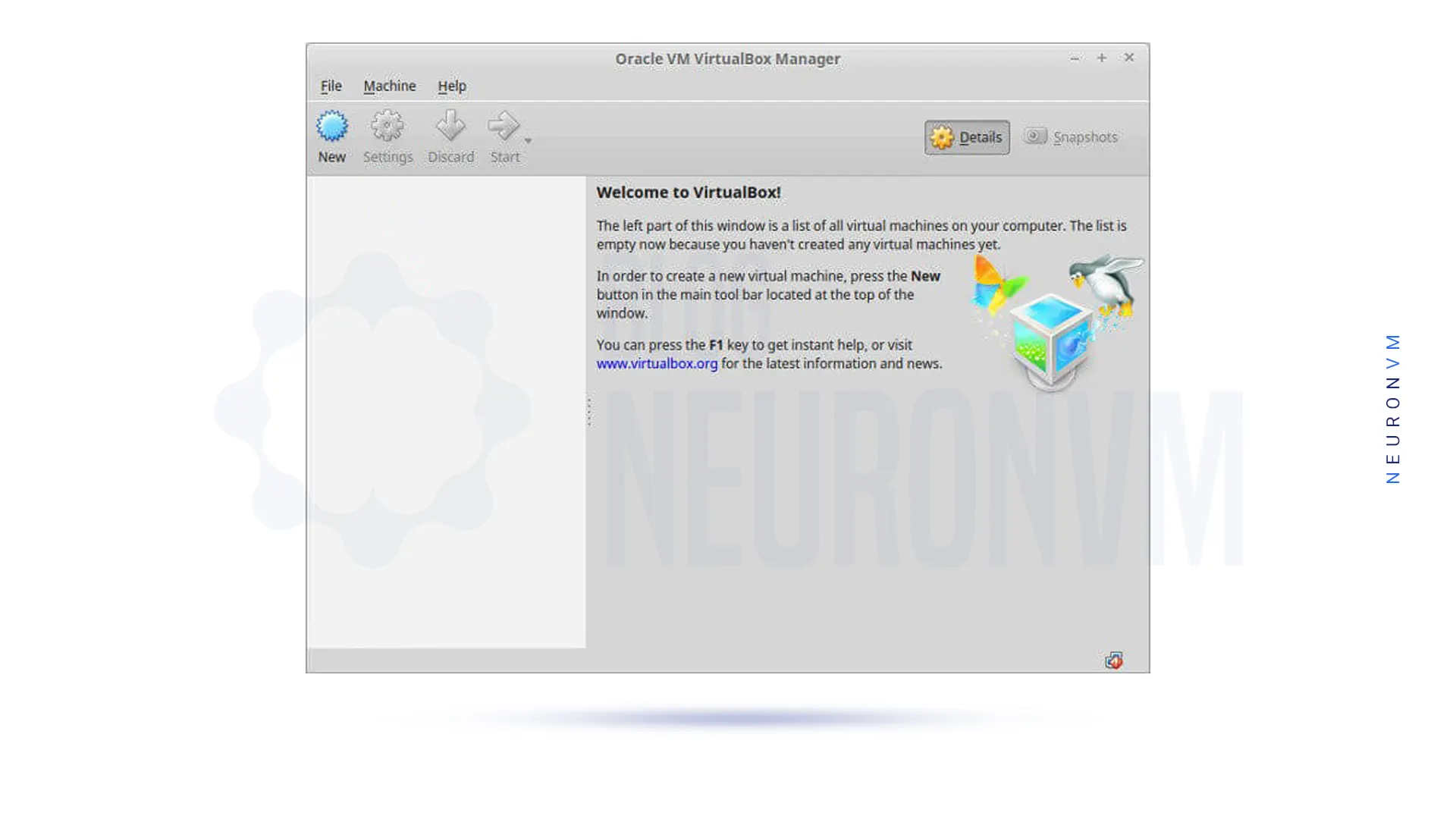
After you have successfully installed VirtualBox on RDP 2016 in the previous section, you will see the VirtualBox homepage. Note that no virtual machines have been created yet. Therefore, it must be constructed.
Note: In this tutorial, we are going to look at how to use VirtualBox to run Windows 10 on a virtual machine.
In the first stage, you must open the Virtualbox and click on the “New” button:
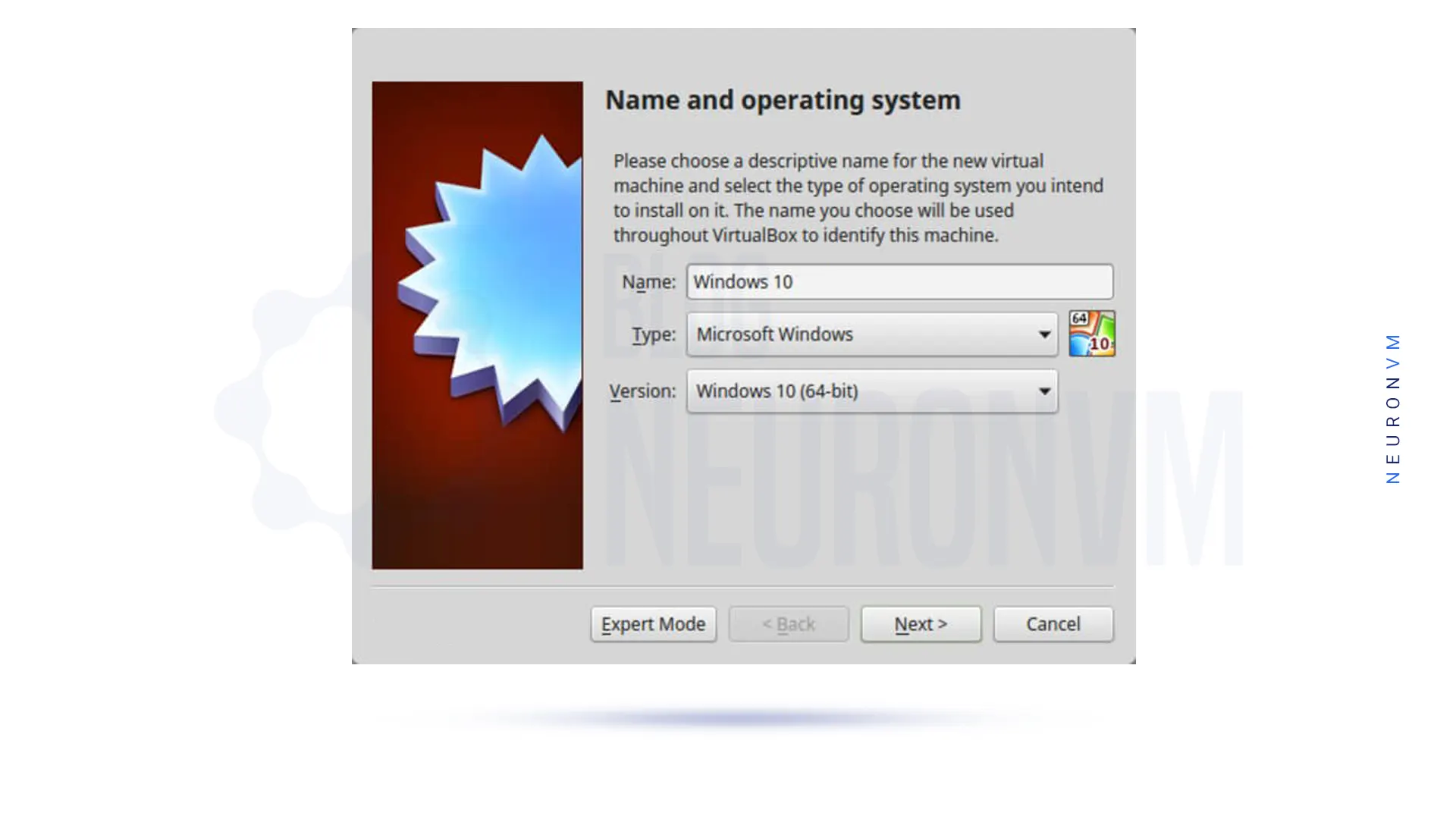
Remember to choose a name for the VM.
You should select “Microsoft Windows” on the first scroll menu, and then select “Windows 10” from the version box.
Click on Next to continue:
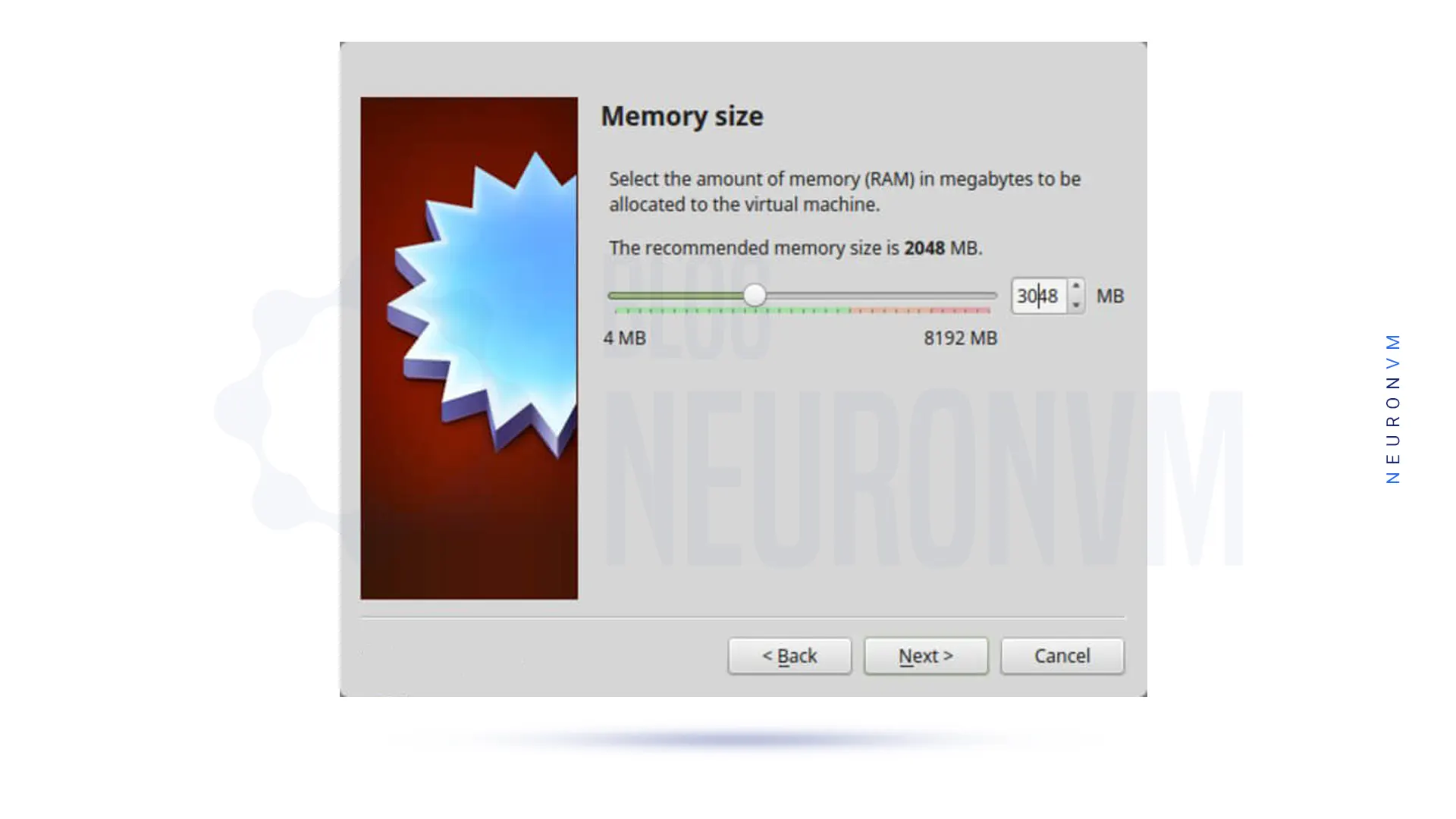
On the screen below, configure the amount of RAM that the virtual machine allows to use.
If you have a surplus or limited RAM, adjusting the slider is fine. Note that if you allocate too much RAM, you will end up with serious performance problems. Then click Next:
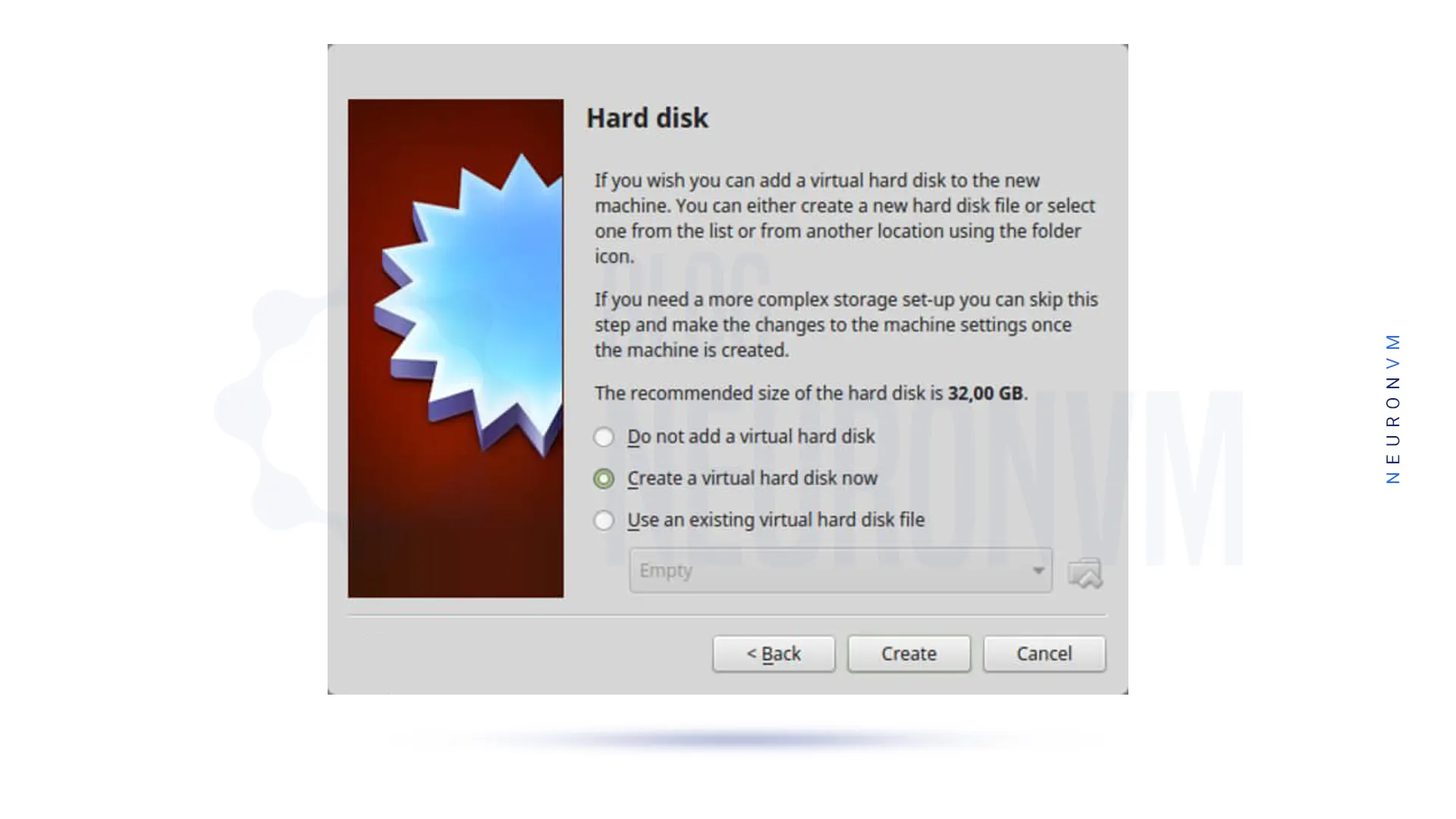
In the window that opens, select “Create a virtual hard disk now” and then click on Create:
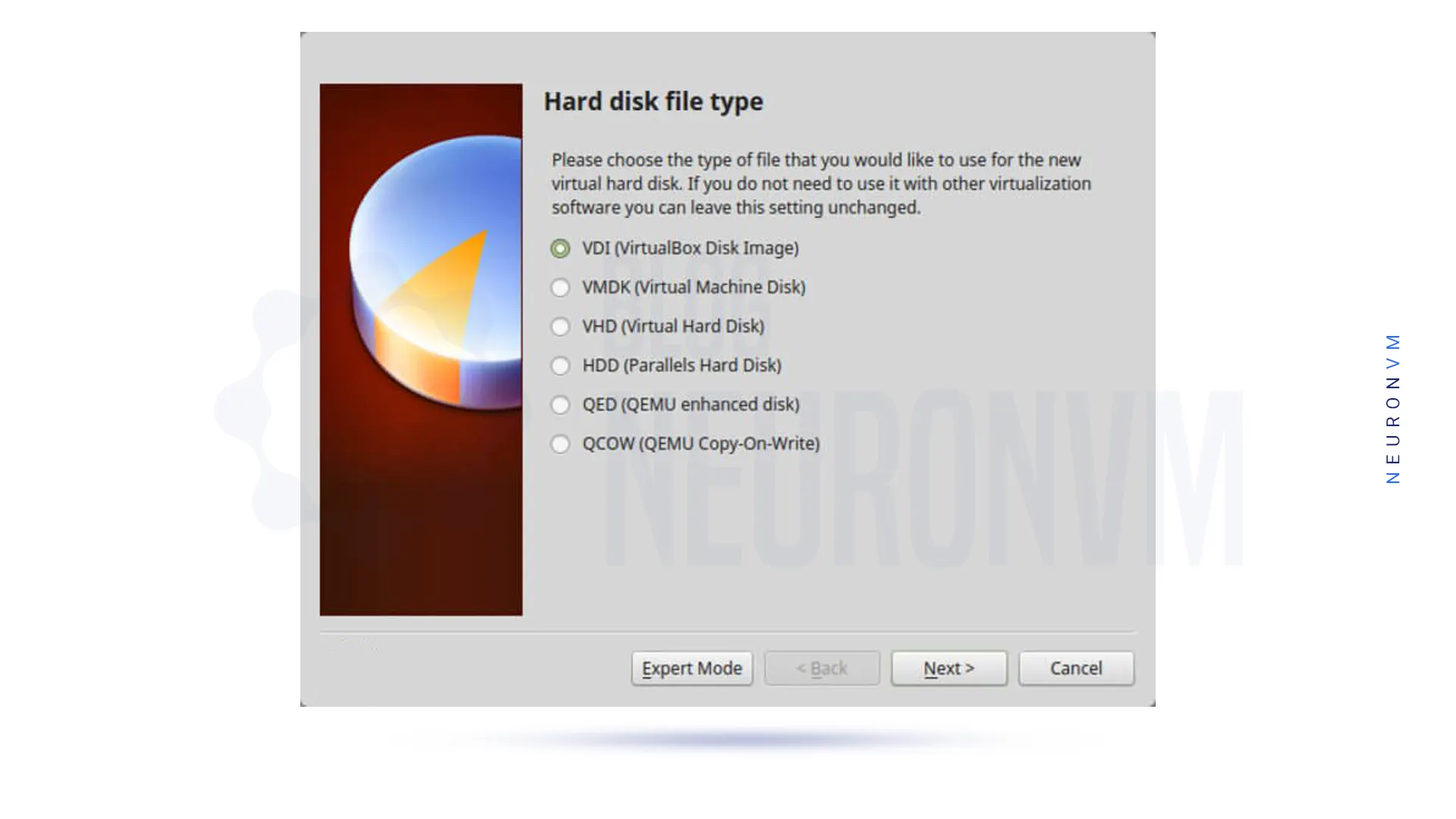
In this window, click ”VDI (VirtualBox Disk Image)” and then select Next:
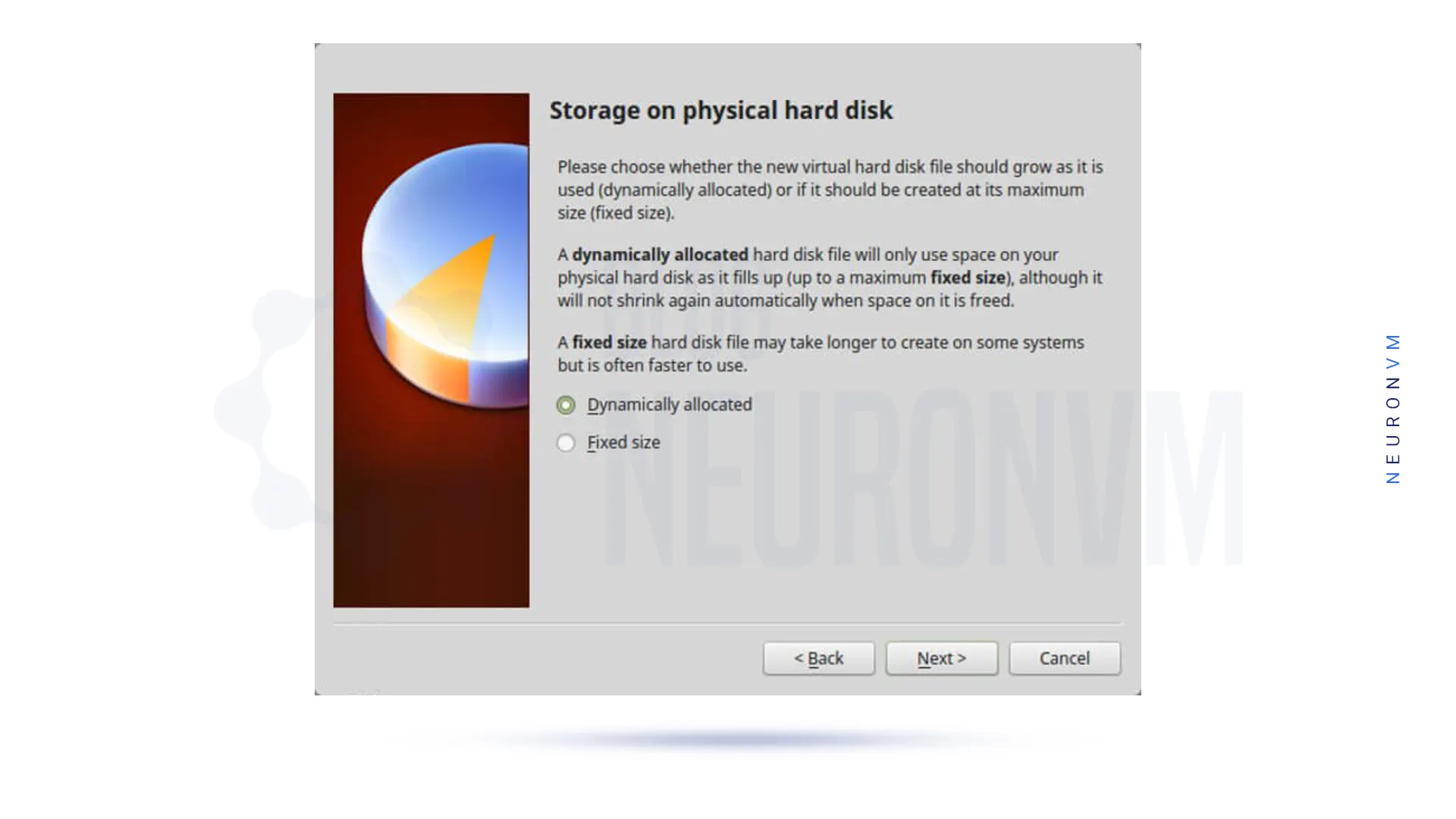
You should set the disk space for your hard drive. You can select a Dynamically allocated or a fixed size. After selecting one of them, click on Next.
Note: If you want to save disk space, select the dedicated option Dynamically.
You can change the location of the drive as well as its size, At the final virtual hard disk screen.
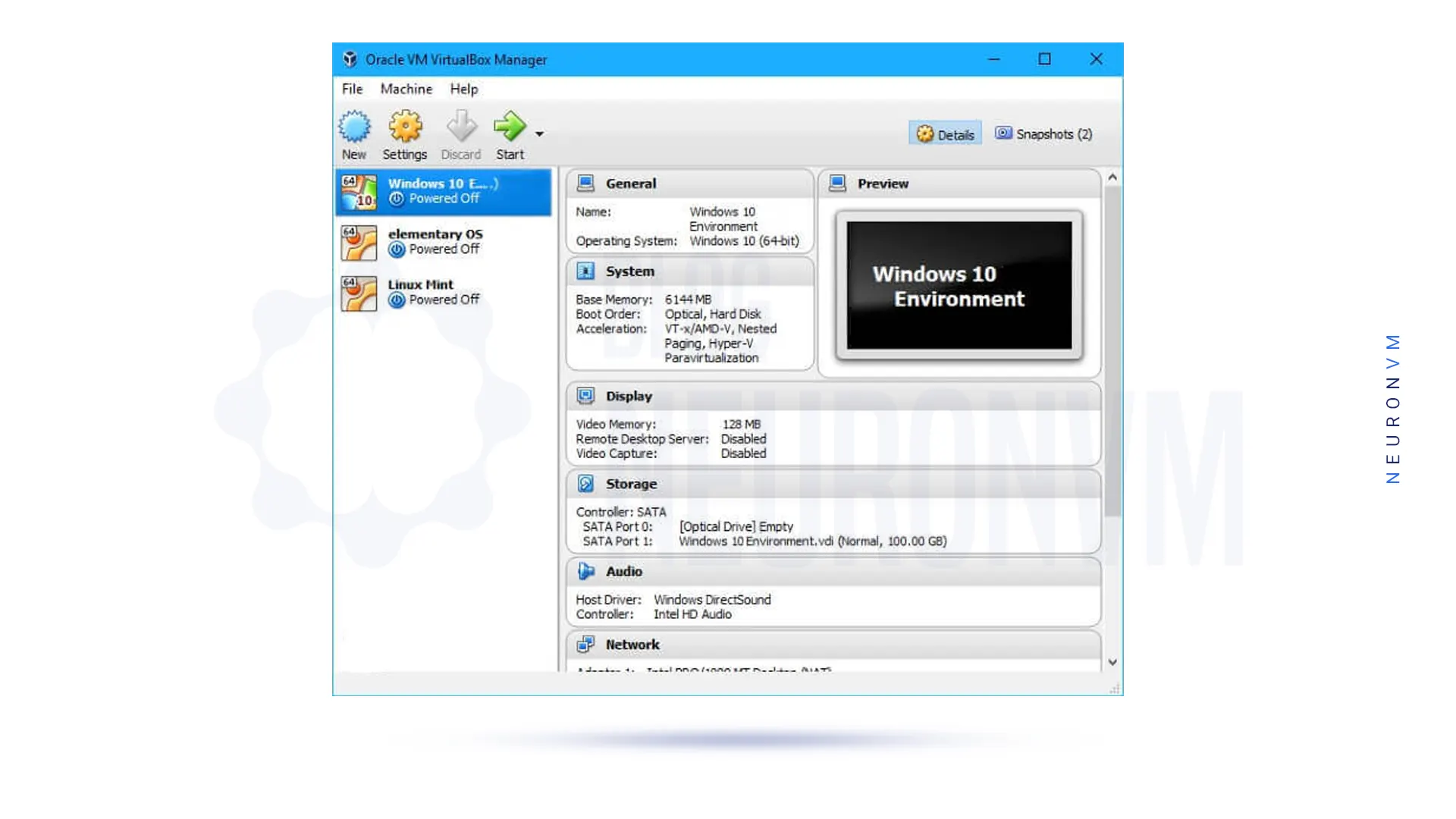
After clicking the “Create” button, you should be able to see your created VM:
Conclusion
Setting up VirtualBox on RDP 2016 can expand the capabilities of your server by allowing you to run multiple operating systems simultaneously. By following the steps outlined in this guide, you can easily set up and manage virtual machines on your RDP server. With VirtualBox, you can create a flexible and scalable virtualized environment that meets your specific needs and requirements.