
How to Install Remix OS Player on Ubuntu 20.04

 Study duration :
8 Minutes
Study duration :
8 Minutes
 0 Comment
If you’ve ever wanted to run an Android app or game on Ubuntu and found that a phone or tablet isn’t the right choice, you’re not alone. I came across Remix OS Player for exactly the same reason, when I wanted to test Android apps and have a real Android environment on my Linux system, Remix OS Player allows you to experience Android almost like a desktop operating system on Ubuntu, more than just a simple emulator. In this tutorial, based on my personal experience, I’ll explain step-by-step how to install Remix OS Player on Ubuntu 20.04 and share some tips that, if you know from the beginning, will save you a lot of time and nerves, The goal of this article is not just installation, it’s to help you run Remix OS without any hassle and with confidence, and to know exactly where you might run into problems and how to get around them.
Step 1: Download and Extract Remix OS
The first step is to download the Remix OS Player package and extract it to a suitable path on your system hard drive. After extracting, you will see a few important files, such as the ISO file and the installation tool.
Practical Tip: If you don’t see the files, make sure that the Hide extension for known file types option is disabled in Windows.
Step 2: Run the installer
Run the .exe installer (on Windows, you can right-click and select Run as Administrator).
During installation:
- Select the downloaded ISO file
- Select the installation type Hard Disk
- The target drive can be C: or an empty partition

Remix OS will be created as a separate folder on the same drive, and your Windows files will not be deleted. Select the System Size, 32 GB i recommended if you have enough space.
Step 3: Reboot
After the installation is complete, reboot the system, for UEFI systems, you may need to press a special key, such as F12 or F9 to enter the Boot Menu and disable Secure Boot, and once you enter the Boot Manager, select Remix OS and press Enter.

Step 4: Initial Remix OS Setup
After booting, you will see the Remix OS logo and then:
- Select your preferred language
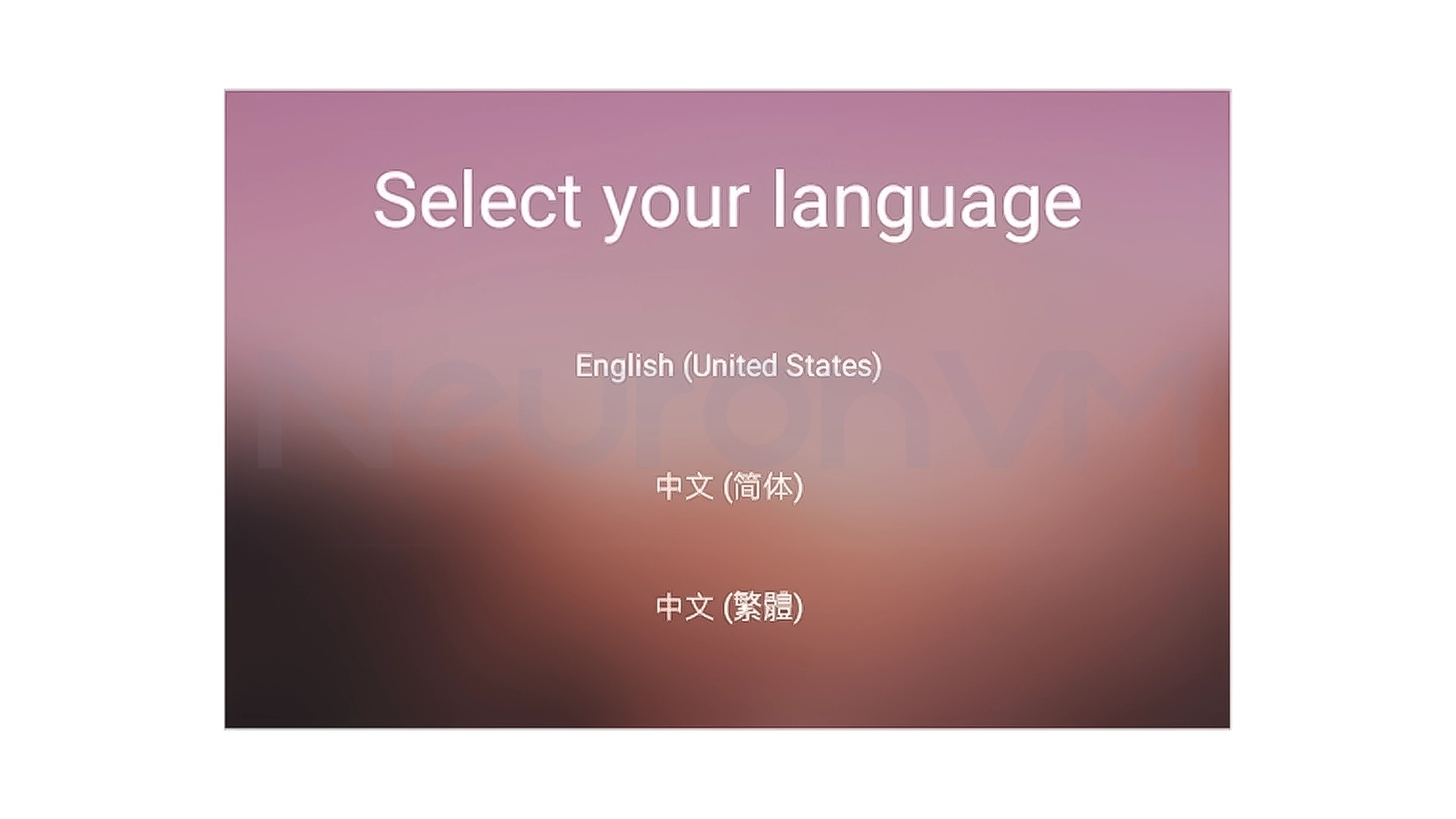
- Accept the user agreement
- Connect to WiFi (or you can click on skip later)
- Add your favorite apps
- Enable Google Play
Congratulations, your Remix OS is now installed as a second system alongside Windows and ready for you to use.
Step 5: Install Remix OS on USB (Optional)
To install on a USB:
- Repeat the above steps that are provided in our guide
- Instead of a Hard Disk, just select a USB Drive as the destination
- Specify the relevant drive
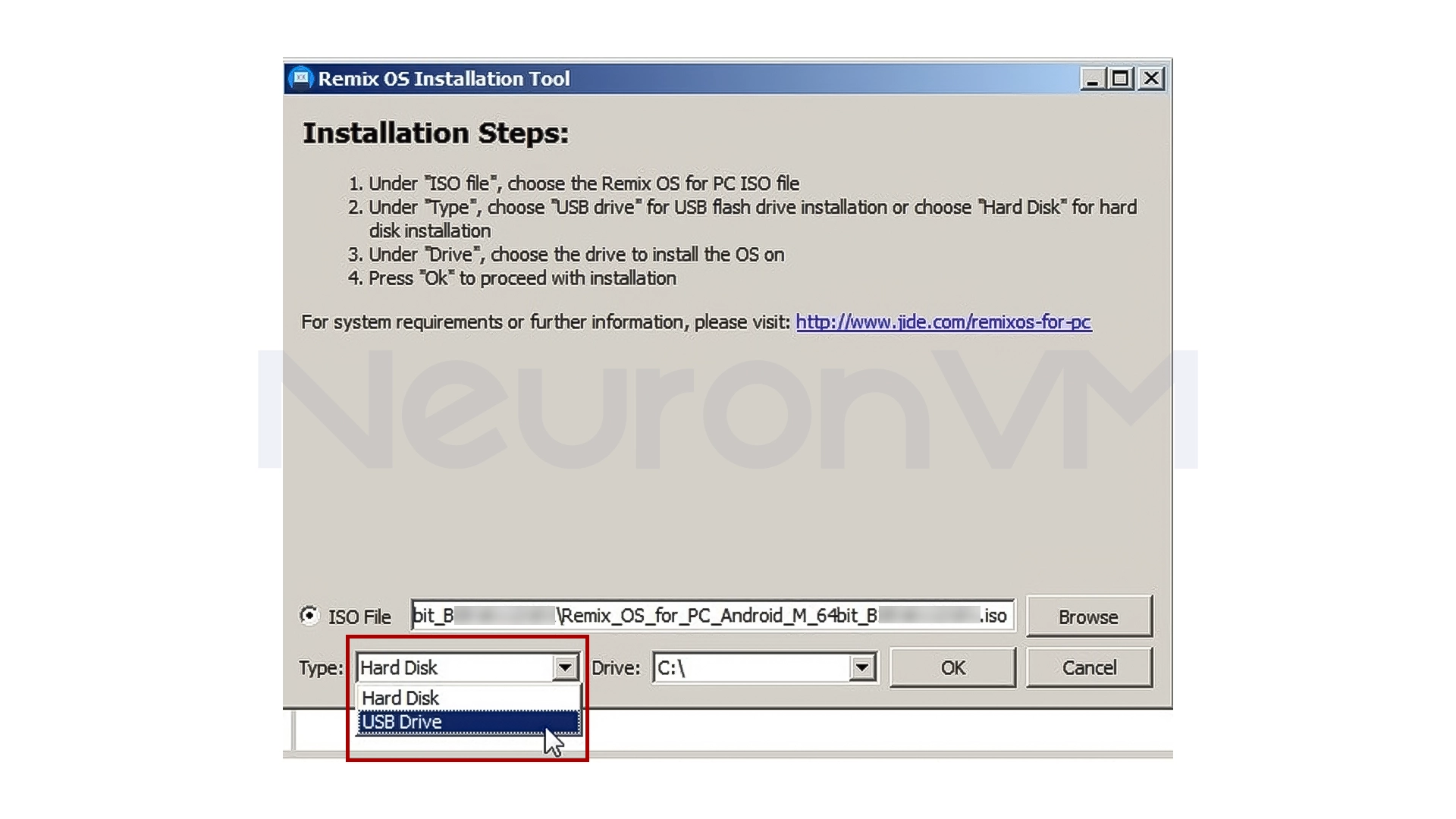
This way, you can have Remix OS in a portable form.
Step 6: Uninstall or Clean Remix OS
If you want to remove Remix OS, just run the UninstallRemixOS file in the installation folder (e.g. C:\RemixOS).
This will delete the files and entries in the Windows Boot Manager.
My Experience with Remix OS
When I first installed Remix OS, to be honest, I was a little scared, Scared of dual booting and losing Windows, but by following the steps carefully:
- Installing on C: was completely safe
- Windows files remained completely unchanged
- Running Android on Ubuntu for the first time was a very interesting experience
A few things that my personal experience taught me:
1- Always make sure you have enough space on your hard drive before installing
2- Pay attention to both Boot Menu messages and Secure Boot options
Installing on a USB is much easier if you just want to test Android, and after this experience, installing Remix OS is no longer scary and can even be a fun tool for testing Android apps and games on Linux, you can read more of my experiences on NeuronVM.
Conclusion
Installing Remix OS Player on Ubuntu 20.04 may seem a bit complicated at first, but once you follow the steps carefully and step by step, you will find that the process is completely manageable and also safe, this way, you can easily have a full Android environment on your system without the need for a phone or tablet and experience the applications in real life, whether you want to use Remix OS alongside your current operating system, run it on a USB, or even just use it to test apps, this tutorial will help you get there without confusion, if my personal experience has one important point, it is that with the steps and a little patience, Remix OS can become a useful and enjoyable tool on Linuxfor everybody.



No, if the steps are followed correctly, your original operating system files will remain intact.
Yes, Remix OS can be dual-installed and selected at boot time.
No for normal use, but having enough RAM and storage space will make for a smoother experience.